> ## Documentation Index
> Fetch the complete documentation index at: https://resource-center-zoho-crm-staging-feb20.mintlify.site/llms.txt
> Use this file to discover all available pages before exploring further.
# Analytics
> Track team performance, call volume, and communication patterns with Quo, formerly OpenPhone, Analytics
## Overview
Quo Analytics provides comprehensive insights into your team's communication patterns and performance. Track call and text volume, identify peak activity times, monitor team performance, and export detailed reports for deeper analysis.
Analytics is available on Business and Scale plans. Data from Starter plan usage becomes available when you upgrade.
## Accessing analytics
### Getting to the dashboard
**To view analytics:**
1. Click **Analytics** in the left sidebar (web and desktop only)
2. Select time period and filters
3. Review metrics and export data as needed
**Platform availability:**
* Available on web and desktop applications
* Mobile app support coming soon
Owners and Admins can view analytics for all numbers. Members can only view analytics for numbers they're assigned to.
## Analytics dashboard overview
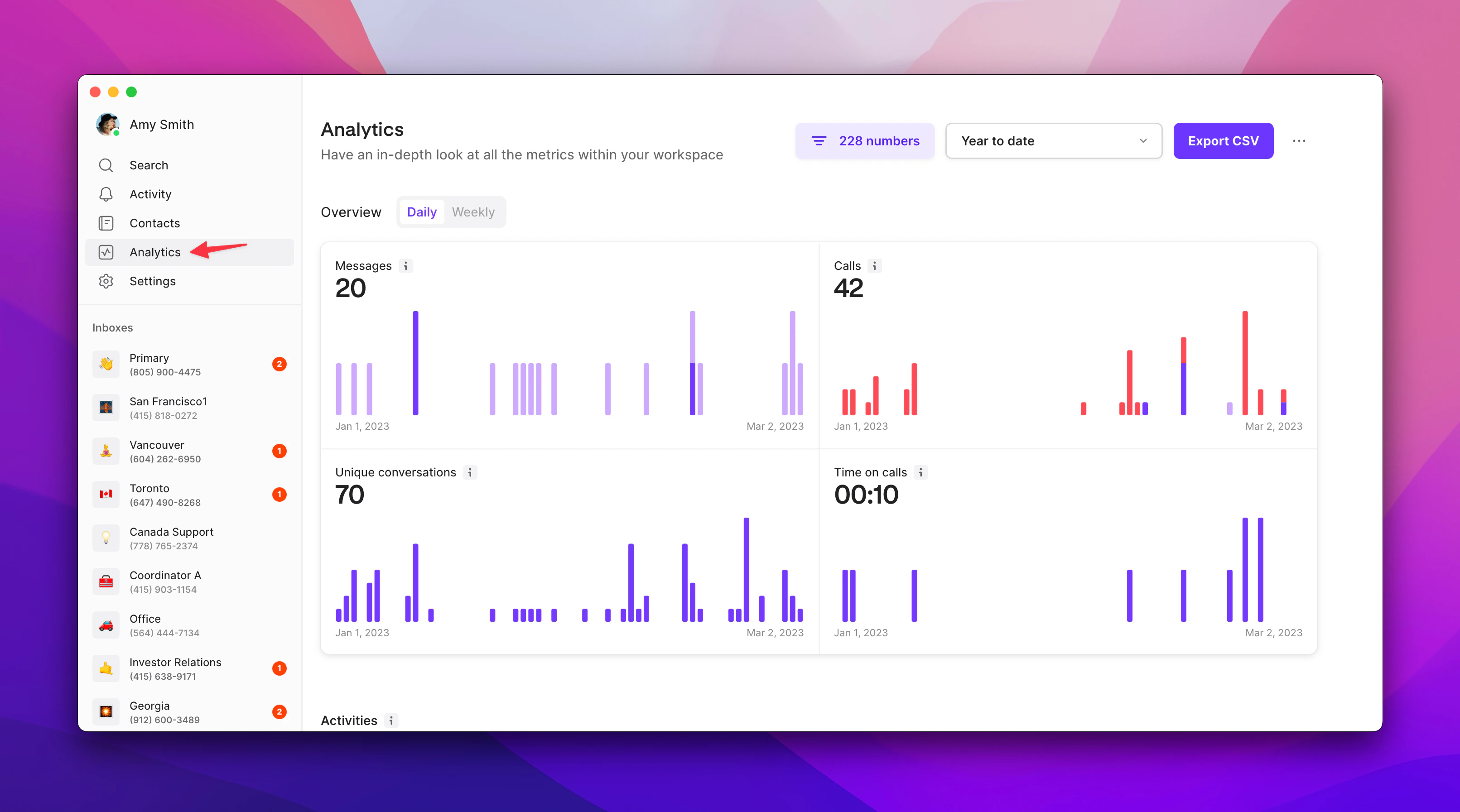
### Key metrics displayed
**Summary statistics:**
* Total outgoing and incoming messages
* Total outgoing and incoming calls
* Total unique conversations
* Total time spent on calls
 ### Team performance breakdown
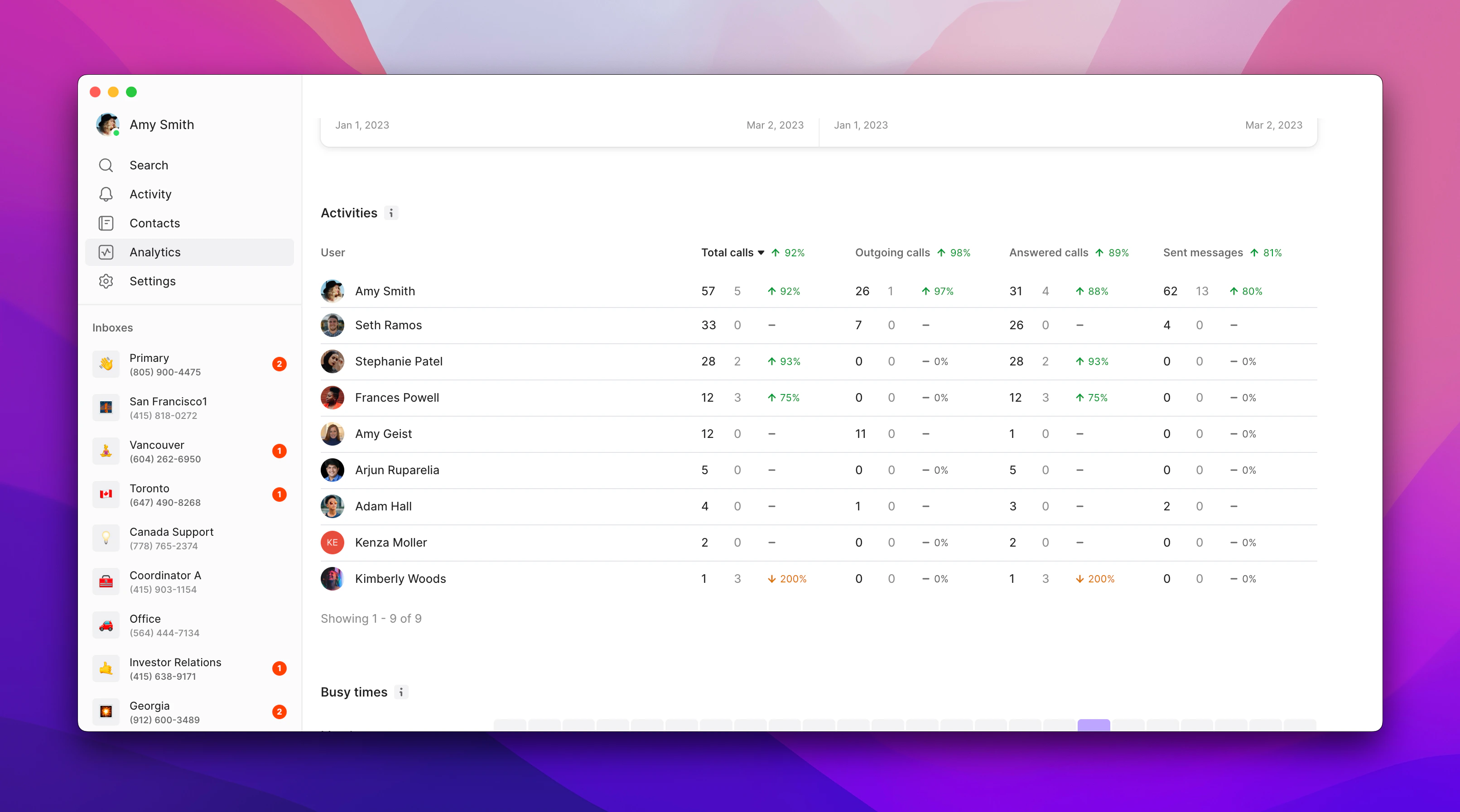
**User activity analysis:**
* Individual team member call and message volumes
* Performance comparisons across team
* Activity trends over selected time periods
### Team performance breakdown
**User activity analysis:**
* Individual team member call and message volumes
* Performance comparisons across team
* Activity trends over selected time periods
 ### Activity heat map
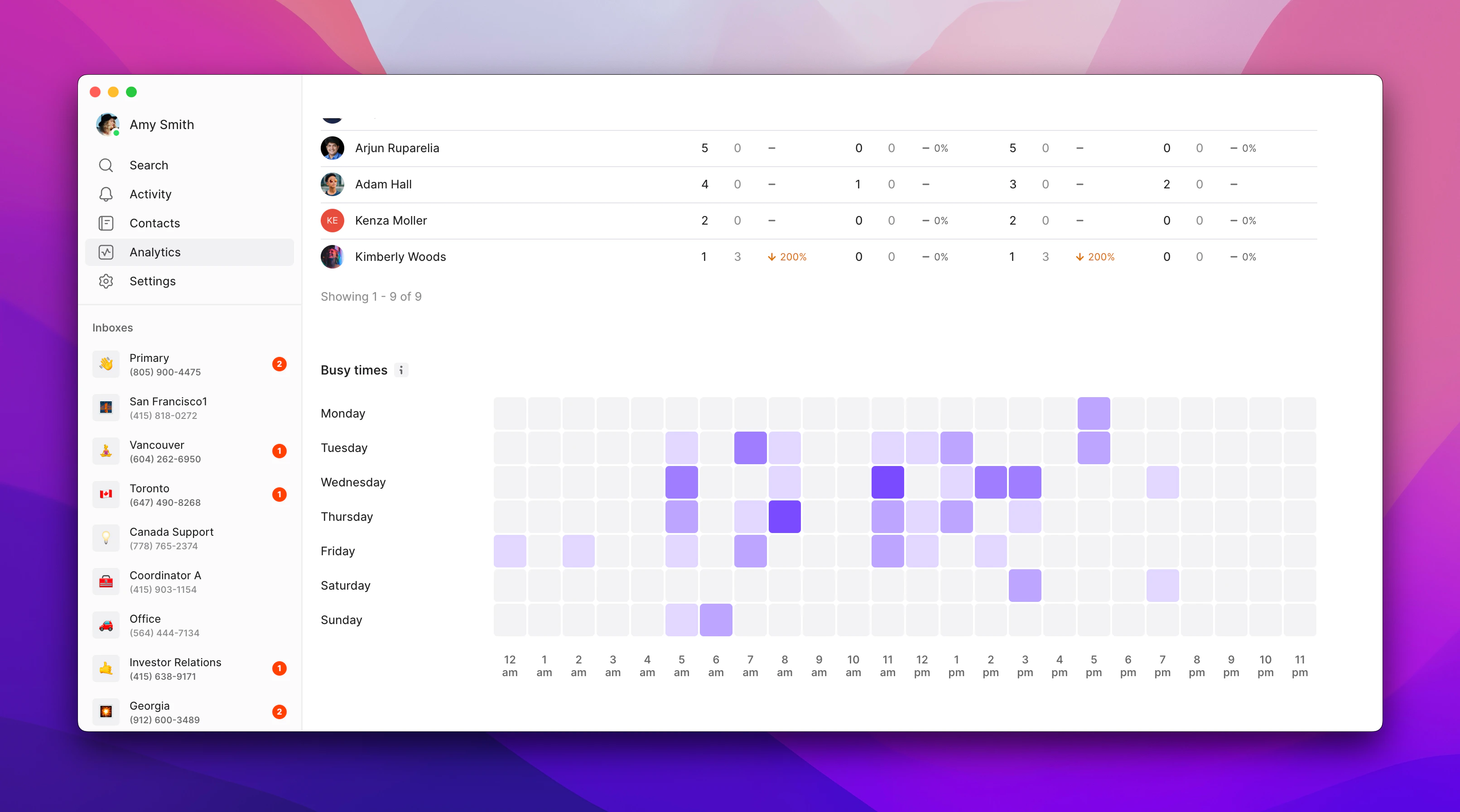
**Peak activity identification:**
* Visual representation of busiest times by day and hour
* Helps optimize team scheduling and coverage
* Identifies communication patterns
### Activity heat map
**Peak activity identification:**
* Visual representation of busiest times by day and hour
* Helps optimize team scheduling and coverage
* Identifies communication patterns
 ## Filtering and customizing data
### Available filter options
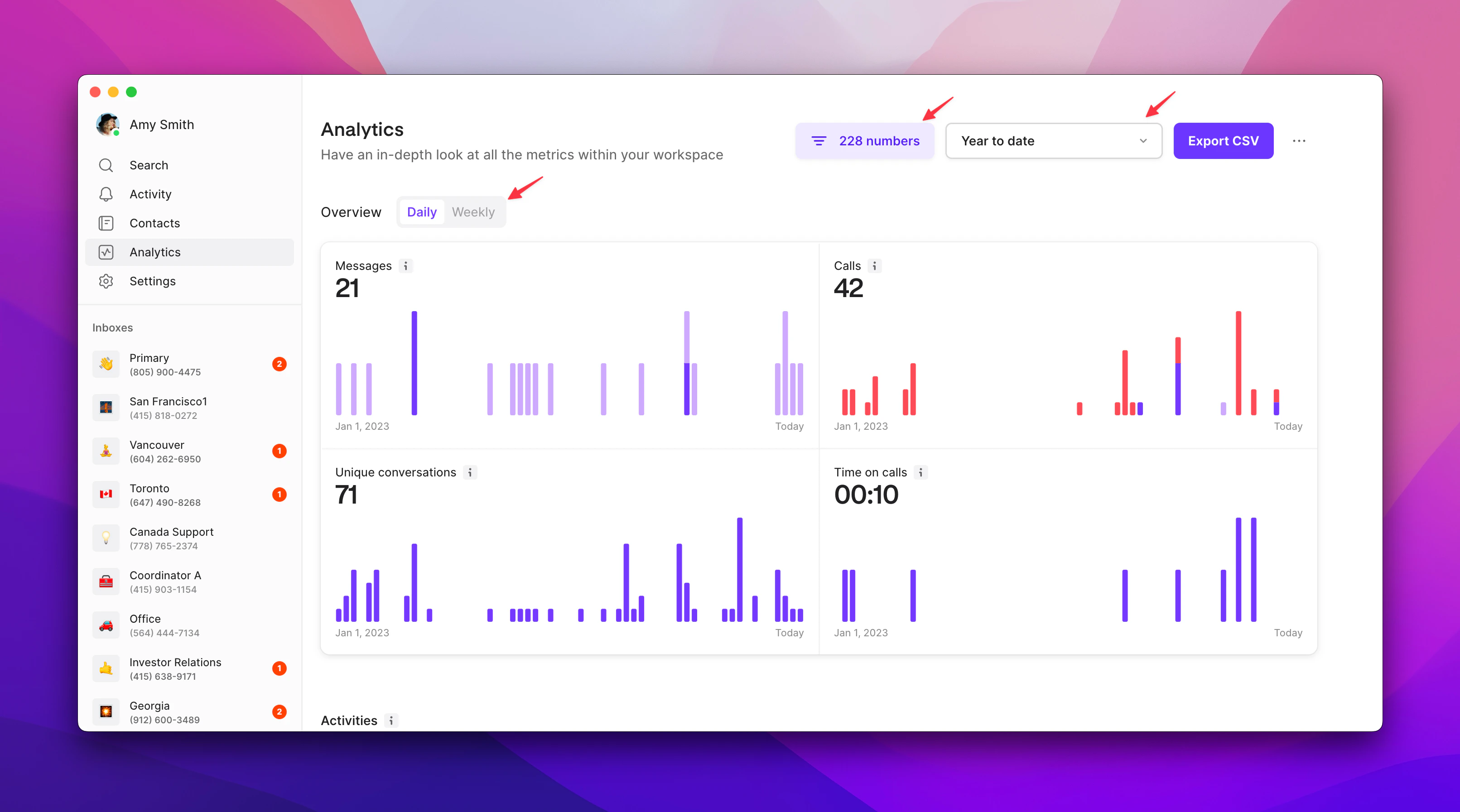
**Time period filters:**
* Predefined ranges: Today, last 7 days, 4 weeks, 3 months, 12 months
* Business periods: Month-to-Date (MtD), Quarter-to-Date (QtD), Year-to-Date (YtD)
* Custom date range selection
**Data granularity:**
* Week view for broader trends
* Day view for detailed daily patterns
**Phone number filtering:**
* Filter by specific phone numbers
* Analyze individual number performance
* Compare performance across different numbers
## Filtering and customizing data
### Available filter options
**Time period filters:**
* Predefined ranges: Today, last 7 days, 4 weeks, 3 months, 12 months
* Business periods: Month-to-Date (MtD), Quarter-to-Date (QtD), Year-to-Date (YtD)
* Custom date range selection
**Data granularity:**
* Week view for broader trends
* Day view for detailed daily patterns
**Phone number filtering:**
* Filter by specific phone numbers
* Analyze individual number performance
* Compare performance across different numbers
 ## Data export and reporting
### CSV export process
**To export analytics data:**
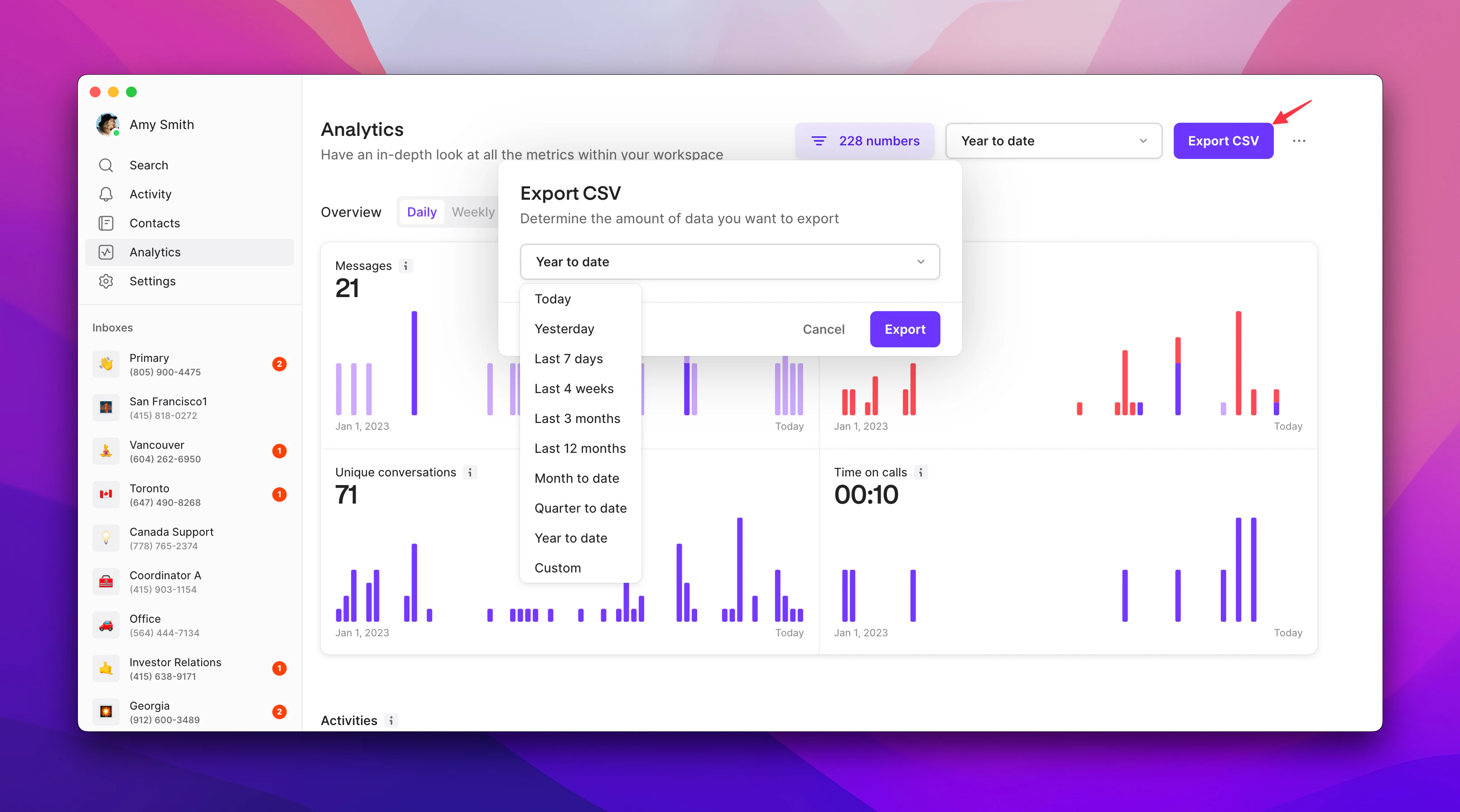
1. Apply desired filters and time range
2. Click **Export CSV** in upper right corner
3. Report will be emailed to your Quo account email
4. Download and analyze in spreadsheet application
### Export data points
**Included in CSV exports (24+ data points):**
* Team member assignment for calls and messages
* Call duration and timing details
* Caller and message sender phone numbers
* Timestamp information for all activities
* Status breakdowns for calls, messages, and voicemail
* Direction indicators (incoming vs outgoing)
## Data export and reporting
### CSV export process
**To export analytics data:**
1. Apply desired filters and time range
2. Click **Export CSV** in upper right corner
3. Report will be emailed to your Quo account email
4. Download and analyze in spreadsheet application
### Export data points
**Included in CSV exports (24+ data points):**
* Team member assignment for calls and messages
* Call duration and timing details
* Caller and message sender phone numbers
* Timestamp information for all activities
* Status breakdowns for calls, messages, and voicemail
* Direction indicators (incoming vs outgoing)
 ## Understanding status indicators
### Call status definitions
**Call completion statuses:**
* **Completed**: Successfully connected calls (incoming or outgoing)
* **Missed**: Incoming or outgoing calls that weren't answered
* **Ringing**: Outgoing calls disconnected immediately (no duration recorded)
* **Cancelled**: Incoming calls abandoned by caller before connection
### Message status definitions
**Message delivery statuses:**
* **Received**: Successfully received incoming messages
* **Delivered**: Outgoing messages successfully delivered to recipient
* **Undelivered**: Outgoing messages that failed to reach recipient
Use the "direction" data point in exports to distinguish between incoming and outgoing communications for each status type.
## Common use cases
### Performance optimization
**Team management:**
* Identify top performers and training opportunities
* Balance workload distribution across team members
* Set performance benchmarks and track improvements
* Monitor response times and call completion rates
### Operational insights
**Business intelligence:**
* Optimize staffing during peak communication times
* Identify customer contact patterns and preferences
* Track service level agreements and response metrics
* Analyze communication trends for business planning
### Reporting and compliance
**Documentation purposes:**
* Generate reports for management and stakeholders
* Track compliance with communication policies
* Maintain records for audit and review purposes
* Export data for integration with business intelligence tools
## Understanding status indicators
### Call status definitions
**Call completion statuses:**
* **Completed**: Successfully connected calls (incoming or outgoing)
* **Missed**: Incoming or outgoing calls that weren't answered
* **Ringing**: Outgoing calls disconnected immediately (no duration recorded)
* **Cancelled**: Incoming calls abandoned by caller before connection
### Message status definitions
**Message delivery statuses:**
* **Received**: Successfully received incoming messages
* **Delivered**: Outgoing messages successfully delivered to recipient
* **Undelivered**: Outgoing messages that failed to reach recipient
Use the "direction" data point in exports to distinguish between incoming and outgoing communications for each status type.
## Common use cases
### Performance optimization
**Team management:**
* Identify top performers and training opportunities
* Balance workload distribution across team members
* Set performance benchmarks and track improvements
* Monitor response times and call completion rates
### Operational insights
**Business intelligence:**
* Optimize staffing during peak communication times
* Identify customer contact patterns and preferences
* Track service level agreements and response metrics
* Analyze communication trends for business planning
### Reporting and compliance
**Documentation purposes:**
* Generate reports for management and stakeholders
* Track compliance with communication policies
* Maintain records for audit and review purposes
* Export data for integration with business intelligence tools