> ## Documentation Index
> Fetch the complete documentation index at: https://resource-center-zoho-crm-staging-feb20.mintlify.site/llms.txt
> Use this file to discover all available pages before exploring further.
# Call forwarding
> Route calls to external numbers, answering services, or backup lines for continuous availability
## Overview
Call forwarding ensures your business never misses important calls by automatically routing them to alternative numbers. Whether you need coverage during vacations, after-hours support, or overflow handling during busy periods, Quo, formerly OpenPhone's call forwarding integrates seamlessly with your call flows to maintain professional service around the clock.
## Understanding call forwarding
**Two forwarding approaches**
Quo offers flexible forwarding options for different needs:
1. **Forward all calls**: Simple, immediate forwarding of every call that comes in. You might do this in a situation where the whole company is going to be closed for a week or some other time period.
2. **Conditional forwarding**: Smart routing based on business hours or call flow logic, where you forward the call simply based on whether a given situation calls for for.
**Common use cases**
* **Vacation coverage**: Route to a colleague while you're away
* **After-hours service**: Send calls to an answering service
* **Overflow handling**: Forward when all team members are busy
* **Emergency backup**: Ensure continuity during outages
* **Geographic routing**: Direct calls to regional offices
## Setting up forward all calls
The quickest way to forward calls when you need immediate coverage:
### Enable forwarding
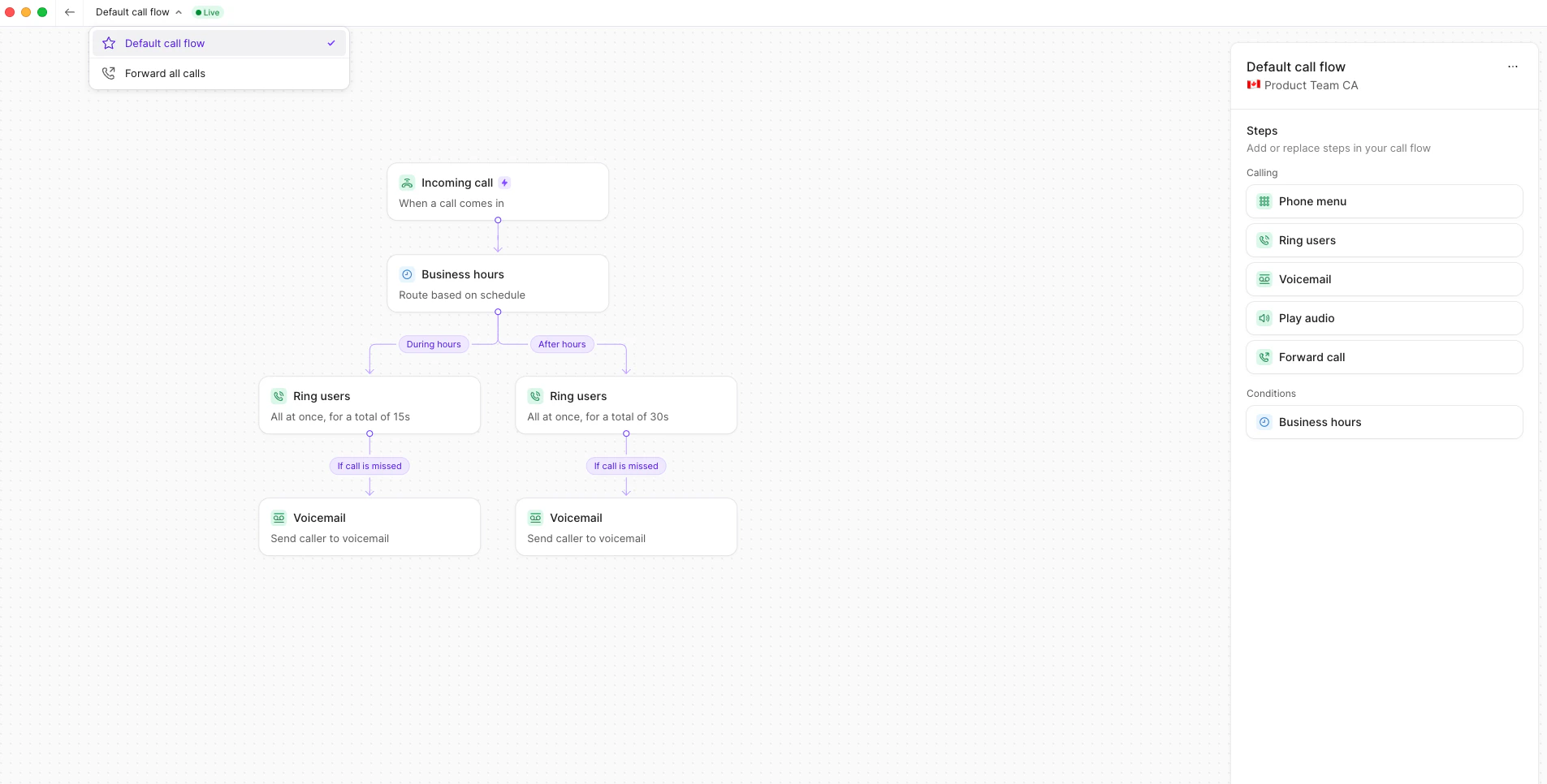
1. Click the **Default call flow** dropdown at the top of the call flow builder
2. Select **Forward all calls**
3. Enter the destination number (internal or external)
4. Click **Create new call flow**
 ### Activate the forwarding flow
Once configured, activate your forwarding:
1. Review the forwarding destination
2. Click **Enable this call flow**
3. Confirm the **Live** indicator appears
### Activate the forwarding flow
Once configured, activate your forwarding:
1. Review the forwarding destination
2. Click **Enable this call flow**
3. Confirm the **Live** indicator appears
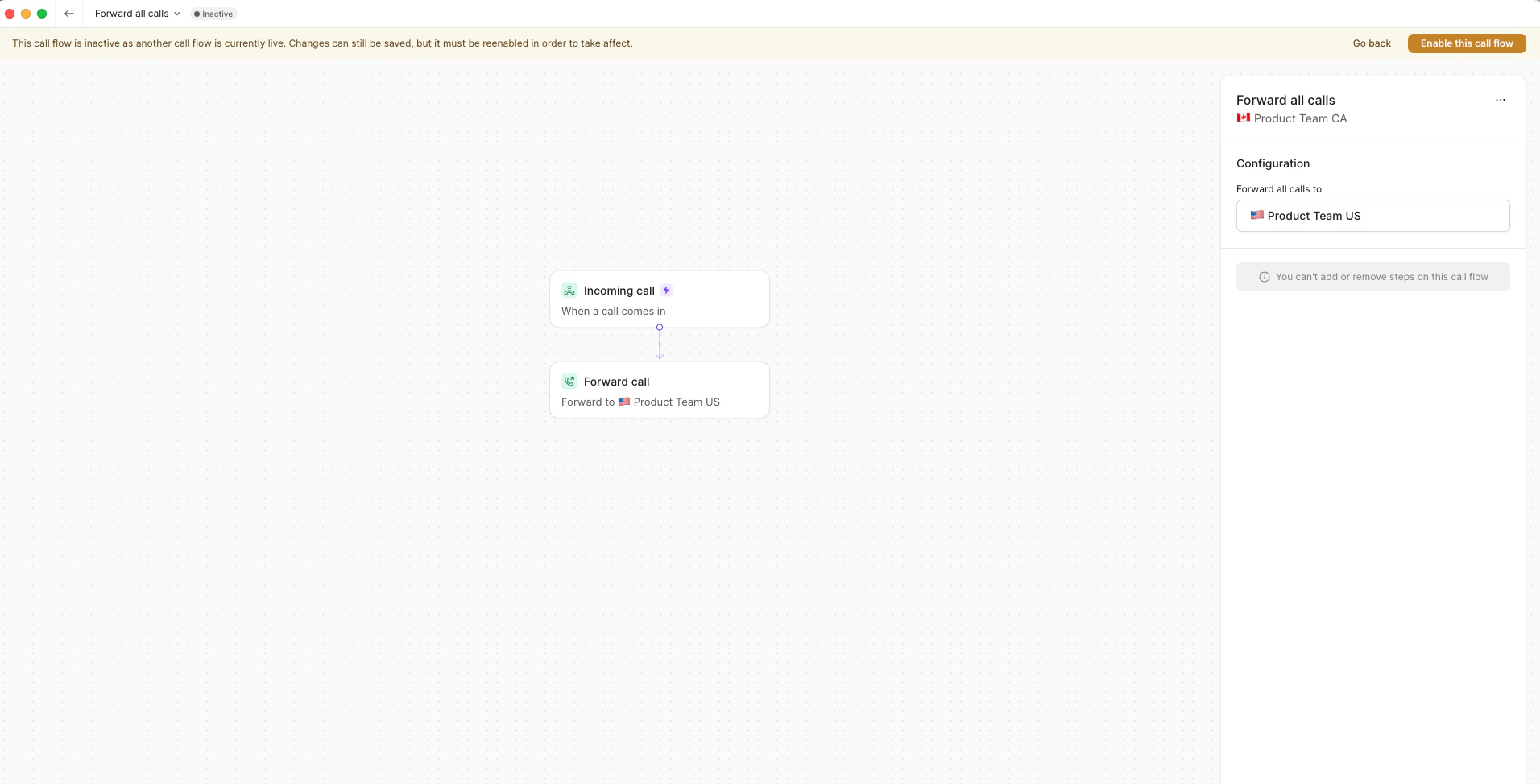 The "Forward all calls" flow cannot include additional steps—it's designed for simple, direct forwarding only.
### Return to normal routing
To disable forwarding and restore your default flow:
1. Select **Default call flow** from the dropdown
2. Click **Enable this call flow**
3. Forwarding stops immediately
## Conditional call forwarding
For more sophisticated routing based on business hours or specific conditions:
### Business hours forwarding
Route calls differently during and after hours:
The "Forward all calls" flow cannot include additional steps—it's designed for simple, direct forwarding only.
### Return to normal routing
To disable forwarding and restore your default flow:
1. Select **Default call flow** from the dropdown
2. Click **Enable this call flow**
3. Forwarding stops immediately
## Conditional call forwarding
For more sophisticated routing based on business hours or specific conditions:
### Business hours forwarding
Route calls differently during and after hours:
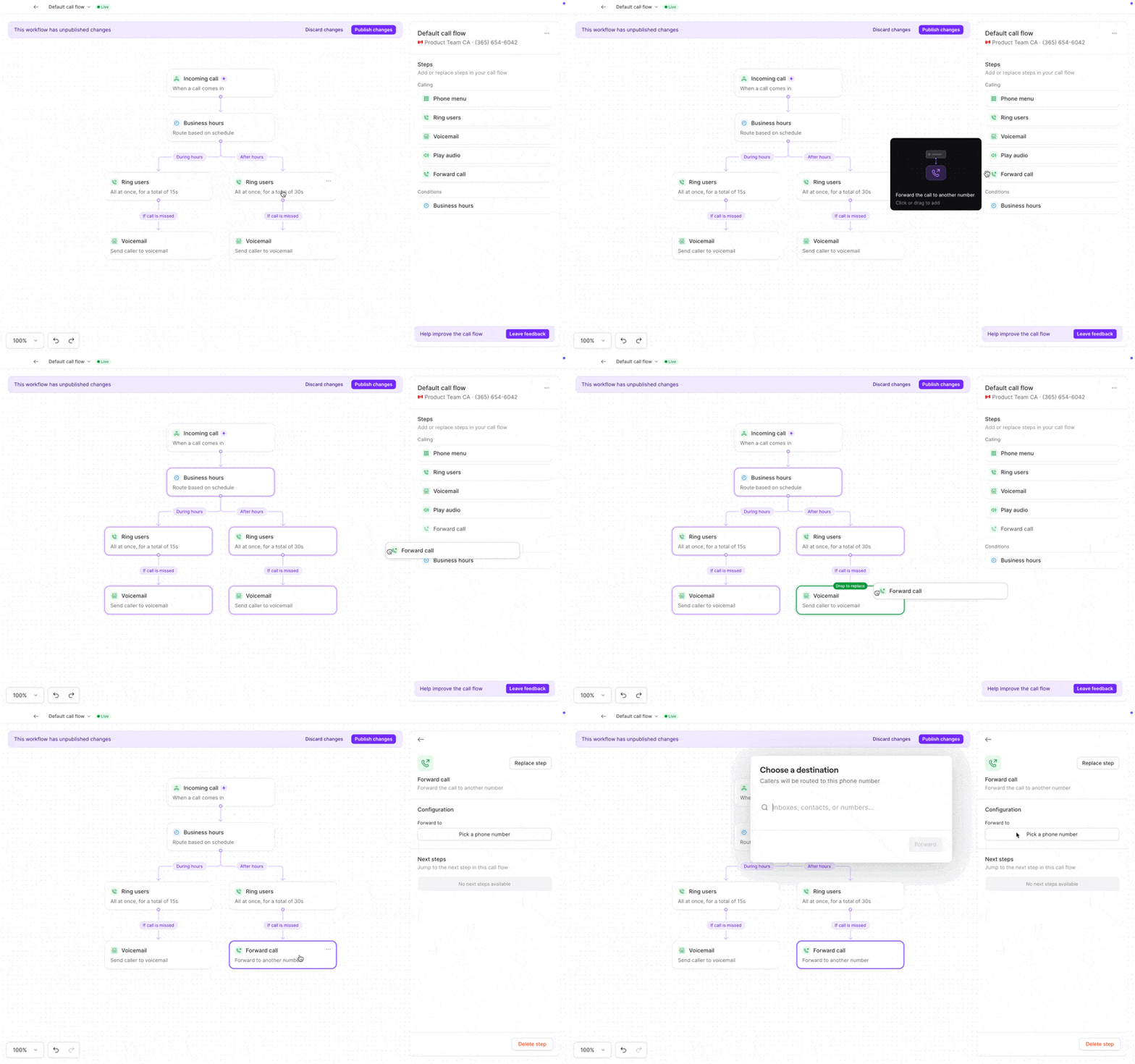 1. **Add business hours condition**
* Drag Business hours step after Incoming call
* Configure your schedule in settings
2. **Set during-hours routing**
* Add Ring users step
* Configure normal team routing
3. **Set after-hours forwarding**
* Add Forward call step
* Enter external number or answering service
## Configuring forward call steps
Within your call flow builder:
### Add forwarding step
1. Drag **Forward call** step into your flow
2. Can be placed after:
* Incoming call trigger
* Ring users (as fallback)
* Business hours condition
* Phone menu options
### Select destination
Choose where to forward calls:
* **Quo numbers**: Other numbers in your workspace
* **Team members**: Specific user's external number
* **External numbers**: Any US/Canadian number
* **Answering services**: Third-party services
Call forwarding currently only supports US and Canadian numbers. International forwarding is not yet available.
## Managing forwarded calls
What happens when a call is forwarded?
* **Recording**: Quo can't record a forwarded call since it's been sent elsewhere and is no longer in your account.
* **Transcription**: This isn't available for the same reasons as recordings.
* **Analytics**: We'll log the call as coming in to Quo and being transferred.
* **Voicemail**: As above, any functionality will be dependent on the number your forward callers to.
## Troubleshooting
**Forwarding not working**
* Verify destination number is correct
* Ensure number is US or Canadian
* Check that flow is published and live
* Confirm no conflicts with other settings
**Poor call quality**
* Test destination number directly
* Check forwarding destination's connection
* Consider alternate forwarding numbers
**Calls not reaching destination**
* Verify destination can receive calls
* Check for blocks on forwarded calls
* Ensure destination voicemail isn't full
## Text message forwarding
Text message forwarding is not currently supported. Alternatives include:
* Share numbers with team members
* Use auto-replies for away messages
* Set up email notifications for texts
* Check messages in mobile app
## FAQs
No, call forwarding currently only supports US and Canadian numbers. For international needs, consider using a US-based answering service that can handle international clients.
Your Quo number will still appear as the caller ID when forwarding calls. The recipient sees your business number, not the forwarding destination.
Not directly, but you can use a phone menu to let callers self-select, then forward specific options to different numbers.
Voicemails are handled by the forwarding destination. They won't appear in your Quo inbox unless the destination forwards them back.
No, text forwarding isn't supported. Share numbers with team members who need text access, or set up auto-replies for away messages.
There's no limit on how many calls you can forward, but remember that each forwarded call uses two call legs and counts double toward your usage.
Yes, use business hours with different routing for during and after hours. For other scheduling needs, manually switch between call flows as needed.
<>
1. **Add business hours condition**
* Drag Business hours step after Incoming call
* Configure your schedule in settings
2. **Set during-hours routing**
* Add Ring users step
* Configure normal team routing
3. **Set after-hours forwarding**
* Add Forward call step
* Enter external number or answering service
## Configuring forward call steps
Within your call flow builder:
### Add forwarding step
1. Drag **Forward call** step into your flow
2. Can be placed after:
* Incoming call trigger
* Ring users (as fallback)
* Business hours condition
* Phone menu options
### Select destination
Choose where to forward calls:
* **Quo numbers**: Other numbers in your workspace
* **Team members**: Specific user's external number
* **External numbers**: Any US/Canadian number
* **Answering services**: Third-party services
Call forwarding currently only supports US and Canadian numbers. International forwarding is not yet available.
## Managing forwarded calls
What happens when a call is forwarded?
* **Recording**: Quo can't record a forwarded call since it's been sent elsewhere and is no longer in your account.
* **Transcription**: This isn't available for the same reasons as recordings.
* **Analytics**: We'll log the call as coming in to Quo and being transferred.
* **Voicemail**: As above, any functionality will be dependent on the number your forward callers to.
## Troubleshooting
**Forwarding not working**
* Verify destination number is correct
* Ensure number is US or Canadian
* Check that flow is published and live
* Confirm no conflicts with other settings
**Poor call quality**
* Test destination number directly
* Check forwarding destination's connection
* Consider alternate forwarding numbers
**Calls not reaching destination**
* Verify destination can receive calls
* Check for blocks on forwarded calls
* Ensure destination voicemail isn't full
## Text message forwarding
Text message forwarding is not currently supported. Alternatives include:
* Share numbers with team members
* Use auto-replies for away messages
* Set up email notifications for texts
* Check messages in mobile app
## FAQs
No, call forwarding currently only supports US and Canadian numbers. For international needs, consider using a US-based answering service that can handle international clients.
Your Quo number will still appear as the caller ID when forwarding calls. The recipient sees your business number, not the forwarding destination.
Not directly, but you can use a phone menu to let callers self-select, then forward specific options to different numbers.
Voicemails are handled by the forwarding destination. They won't appear in your Quo inbox unless the destination forwards them back.
No, text forwarding isn't supported. Share numbers with team members who need text access, or set up auto-replies for away messages.
There's no limit on how many calls you can forward, but remember that each forwarded call uses two call legs and counts double toward your usage.
Yes, use business hours with different routing for during and after hours. For other scheduling needs, manually switch between call flows as needed.
<>