> ## Documentation Index
> Fetch the complete documentation index at: https://resource-center-zoho-crm-staging-feb20.mintlify.site/llms.txt
> Use this file to discover all available pages before exploring further.
# Contact import
> Import contacts from CSV files, Google Contacts, and your device to quickly build your Quo, formerly OpenPhone, business directory
## Overview
Quickly build your business contact directory by importing existing contacts from multiple sources. Quo offers a dedicated business address book that keeps your professional contacts separate from personal ones while enabling powerful collaboration features.
## Why use a separate contact list?
Quo's dedicated business address book provides several advantages:
* **Organization**: Separate business contacts from personal ones
* **Team collaboration**: Share business contacts without exposing personal information
* **Custom properties**: Tag and store business-specific information
* **Contact notes**: Team members can add collaborative notes
* **Advanced features**: Filtering, bulk operations, and custom workflows
## Import methods
### CSV file import
For large contact lists or migration from other systems.
#### Preparing your CSV file
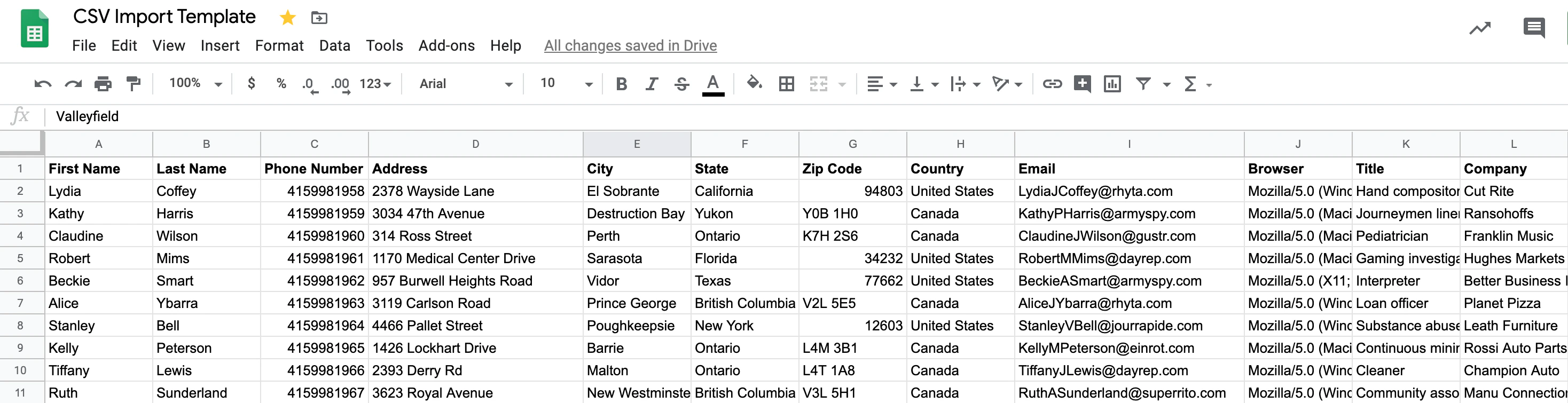
[**Get our CSV template**](https://docs.google.com/spreadsheets/d/1oL6eyRBt2wKTFfFclzqdpWxKwOWUfpspPTOVmmdSkTM/edit?usp=sharing) to ensure proper formatting.
**Requirements:**
* Every column must have a heading
* First Name and Last Name in separate columns
* Include country codes in phone numbers (+1 for US/Canada)
* Remove blank columns and rows
* Maximum 3,000 rows per upload for best performance
**Example CSV structure:**
 #### Upload process
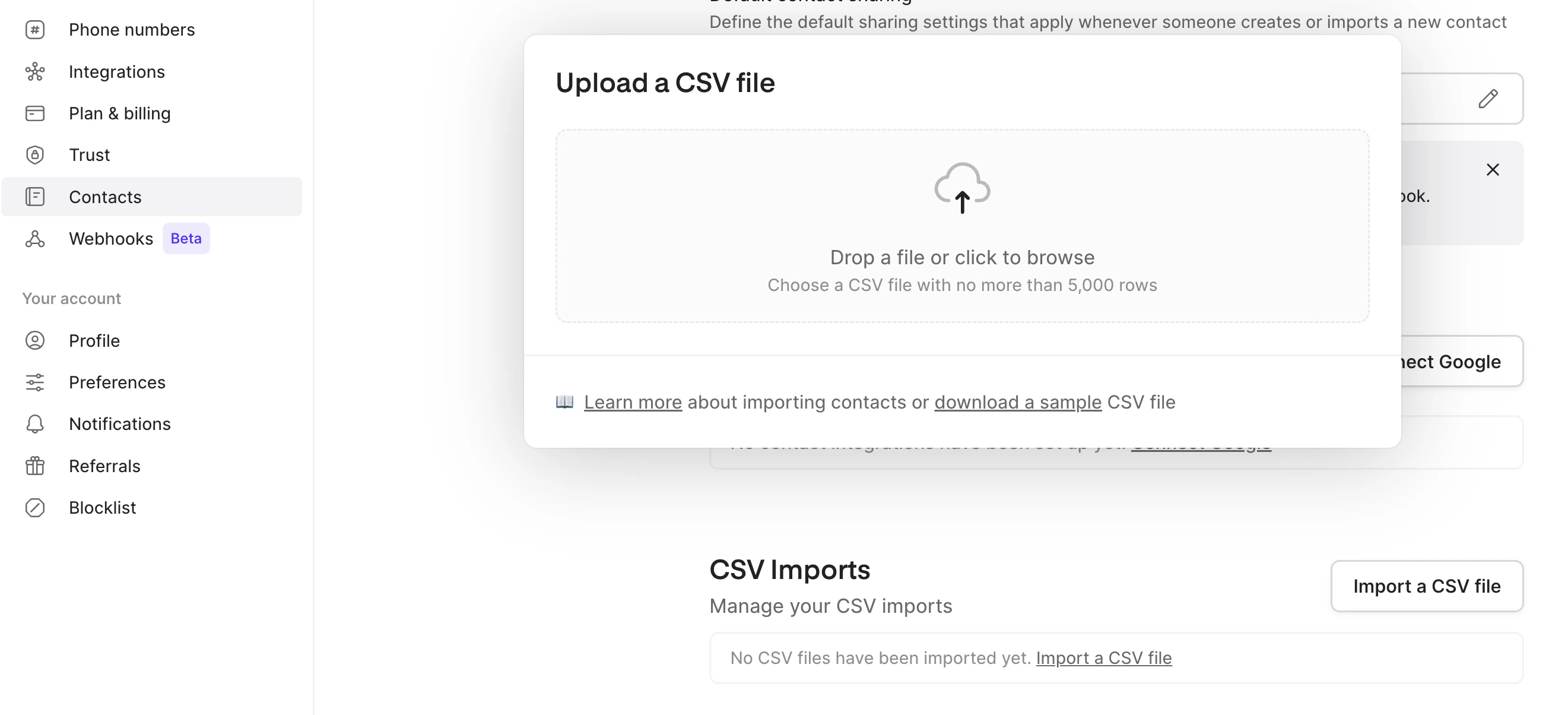
Go to [Quo Contacts](https://my.quo.com/contacts) in the web app and click **Import a CSV**.
Select your formatted .csv file from your computer.
#### Upload process
Go to [Quo Contacts](https://my.quo.com/contacts) in the web app and click **Import a CSV**.
Select your formatted .csv file from your computer.
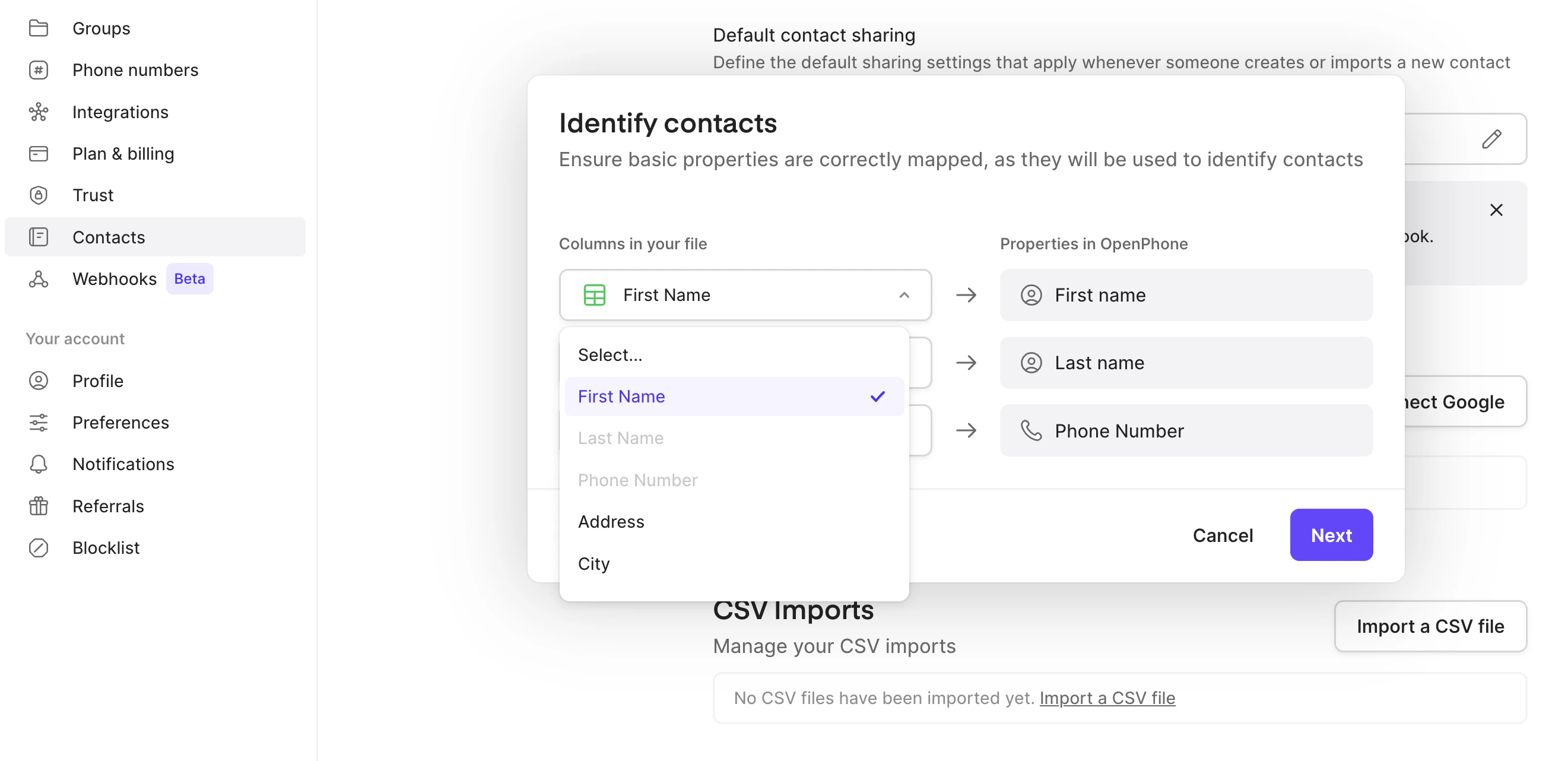
 Match your CSV columns to Quo properties. Create custom properties if needed for unique data.
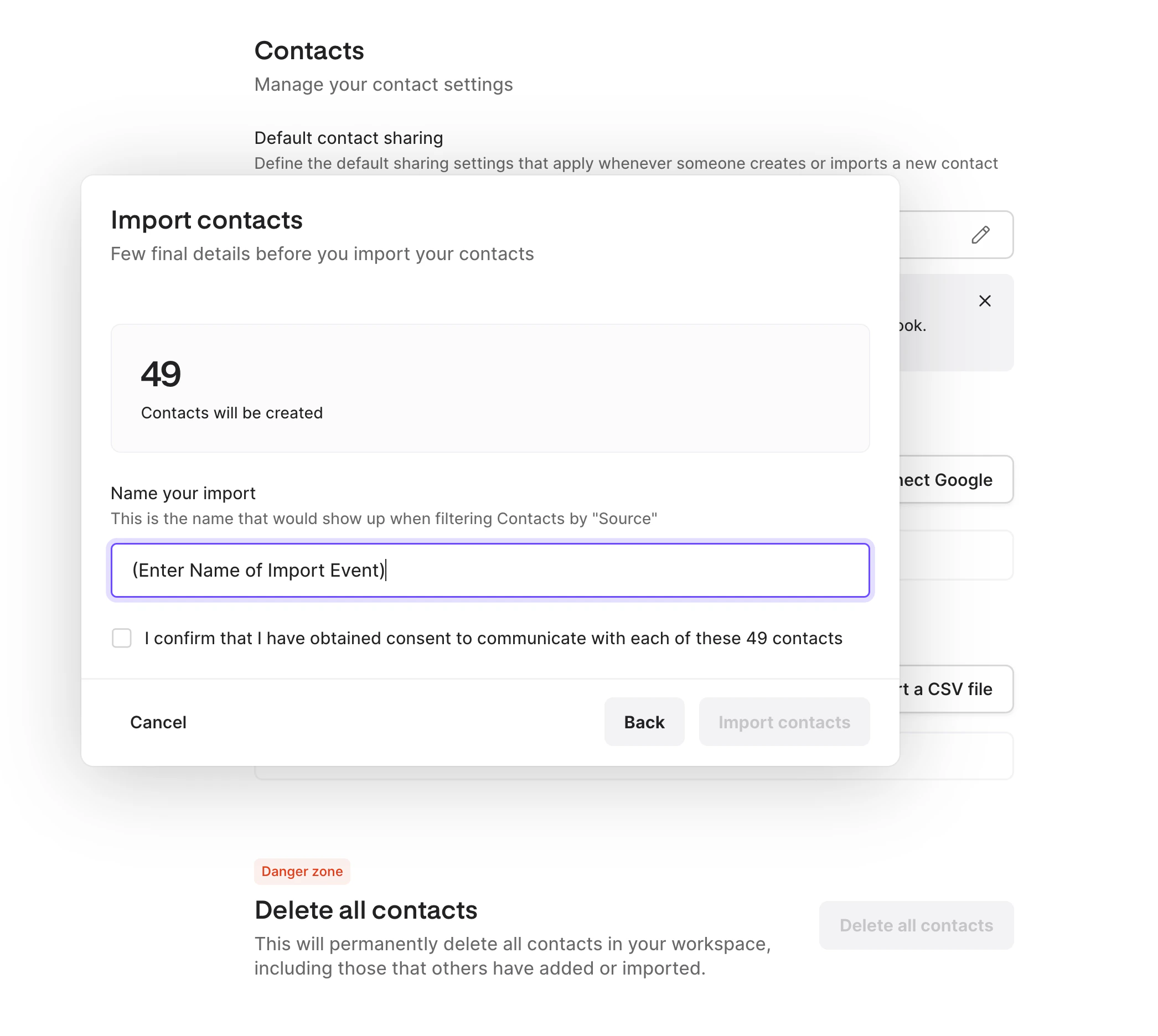
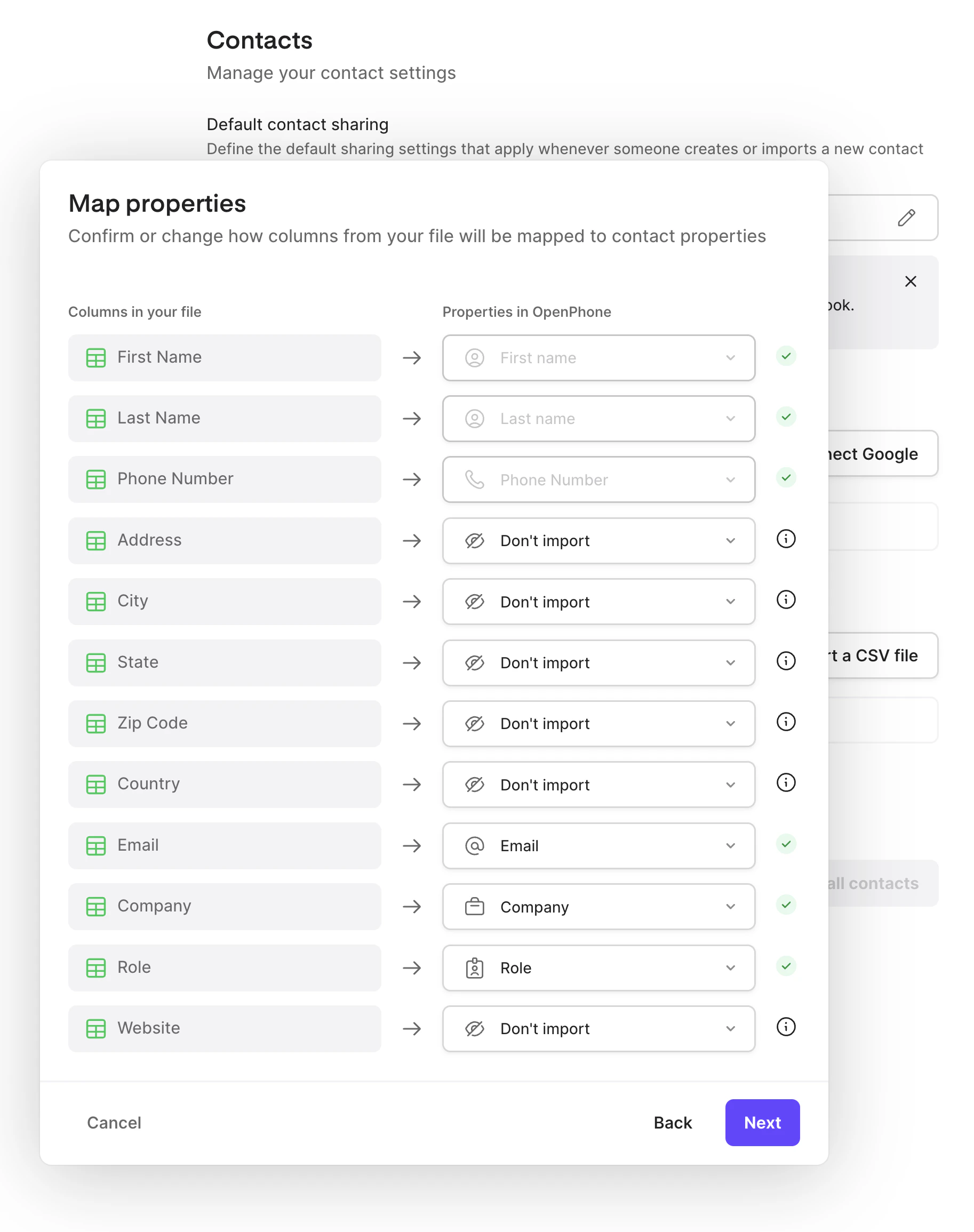 Name your import for future reference and click **Import**.
 #### Bulk sharing after import
Share imported contacts with team members:
#### Bulk sharing after import
Share imported contacts with team members:
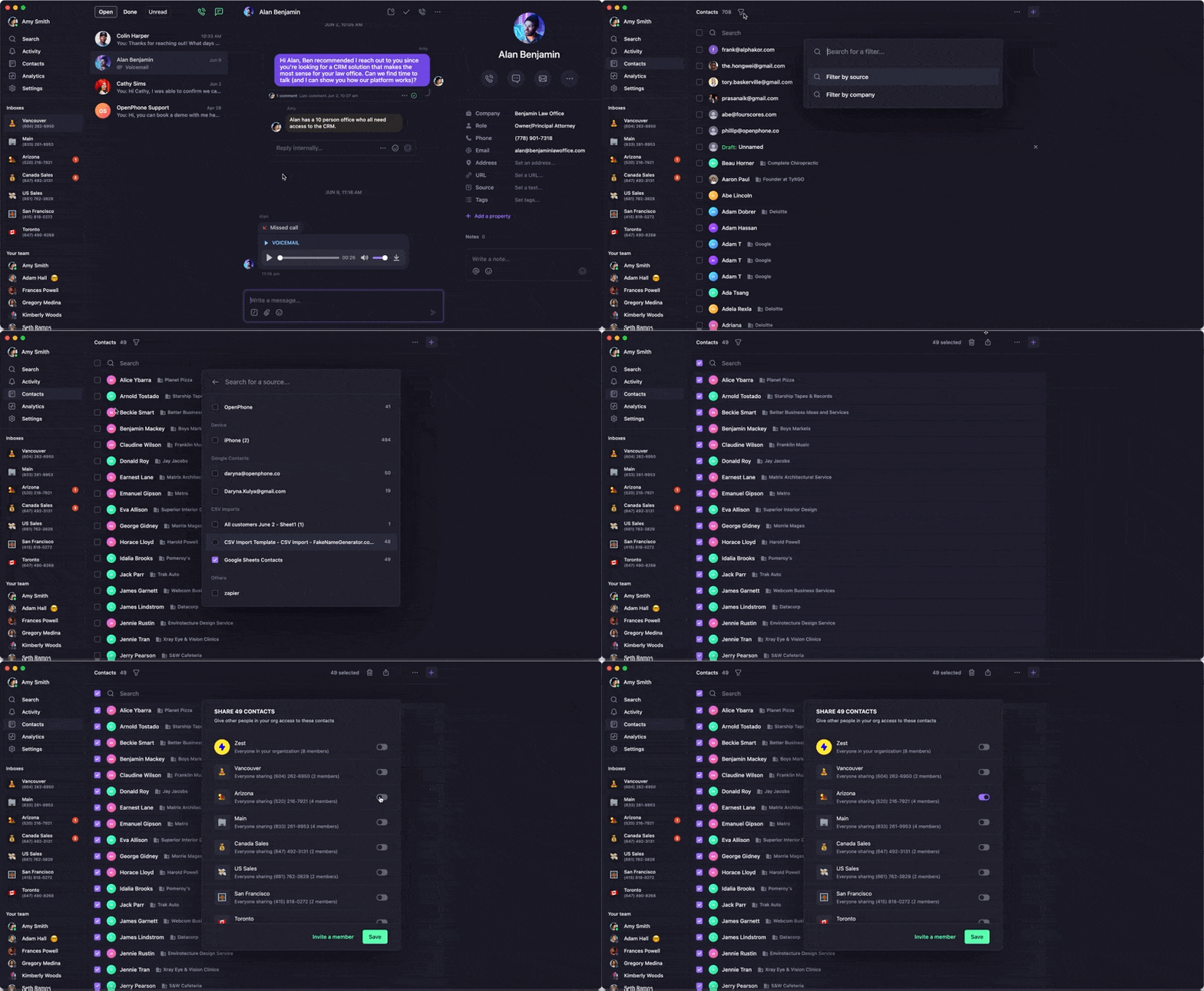 1. Go to **Contacts**
2. Filter by source (your CSV import)
3. Select all contacts
4. Click the share icon
5. Choose which shared numbers get access
6. Save settings
### Google Contacts sync
Automatically sync your Google contacts with Quo.
#### Setting up Google sync
1. Log into the [web app](https://my.quo.com/signup)
2. Go to **Settings → Contacts**
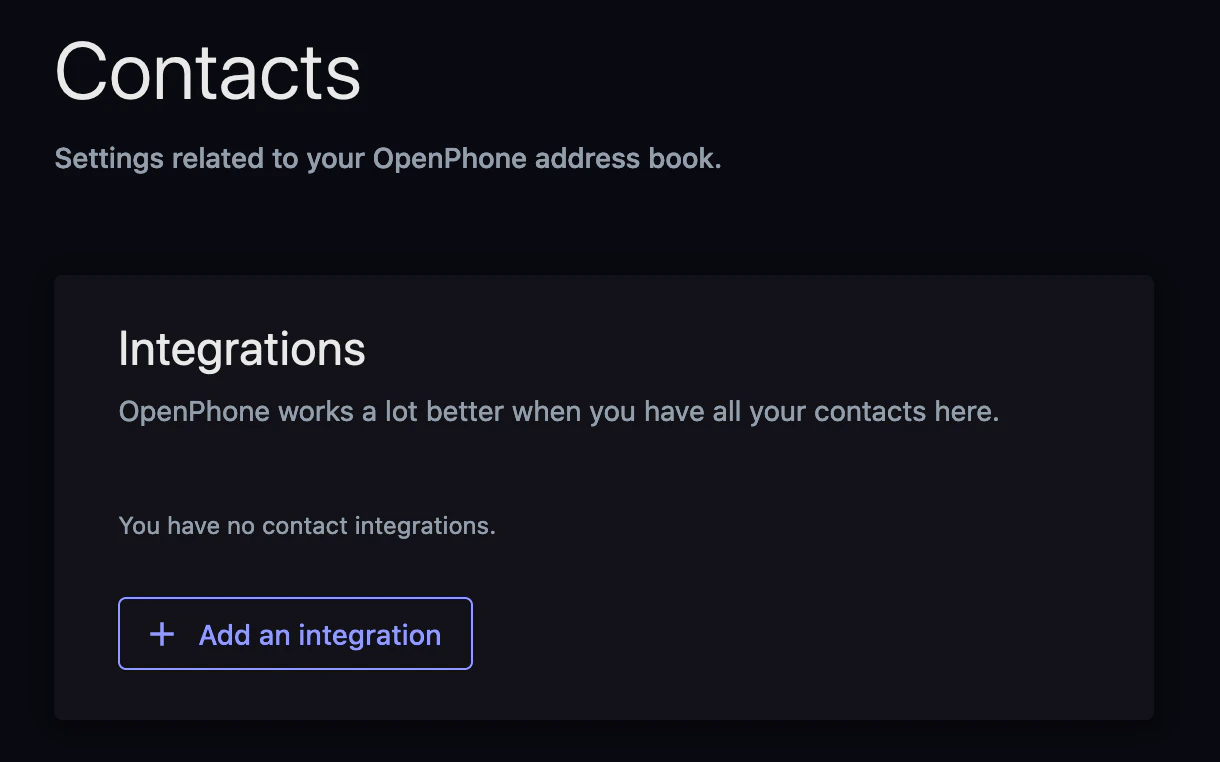
3. Click **Add an integration**
4. Sign in via Google to authorize access
1. Go to **Contacts**
2. Filter by source (your CSV import)
3. Select all contacts
4. Click the share icon
5. Choose which shared numbers get access
6. Save settings
### Google Contacts sync
Automatically sync your Google contacts with Quo.
#### Setting up Google sync
1. Log into the [web app](https://my.quo.com/signup)
2. Go to **Settings → Contacts**
3. Click **Add an integration**
4. Sign in via Google to authorize access
 #### Imported properties
Quo imports these fields from Google Contacts:
* Contact name
* Company
* Title
* Location
* Phone number(s)
* Email(s)
#### Managing the sync
* **Multiple accounts**: Sync with multiple Google Contacts accounts
* **One-way sync**: Data flows from Google to Quo only
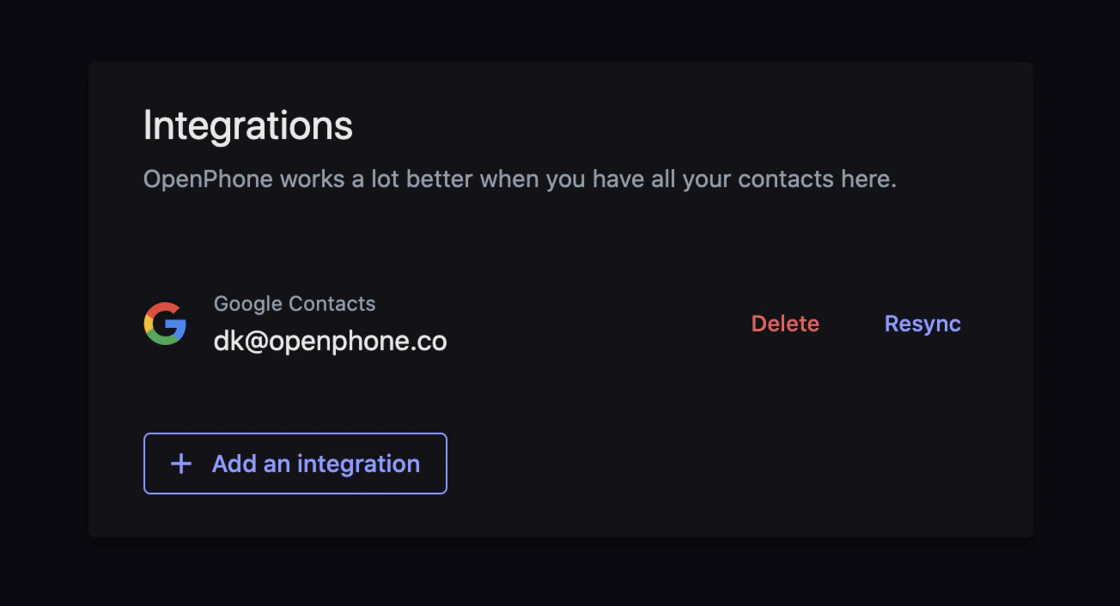
* **Manual refresh**: Resync to get new Google contacts
* **Revoke access**: Delete the integration anytime
The sync is not continuous. New contacts added to Google after setup require manual resyncing.
### Device contacts sync
Import contacts from your phone's address book.
#### iOS contact sync
1. Open Quo and tap your account icon
2. Go to **Settings → Contacts**
3. Select **Sync Contacts** and choose:
* **Don't sync**: No syncing
* **Sync to device**: One-time import
* **Sync everywhere**: Available across all devices
#### Imported properties
Quo imports these fields from Google Contacts:
* Contact name
* Company
* Title
* Location
* Phone number(s)
* Email(s)
#### Managing the sync
* **Multiple accounts**: Sync with multiple Google Contacts accounts
* **One-way sync**: Data flows from Google to Quo only
* **Manual refresh**: Resync to get new Google contacts
* **Revoke access**: Delete the integration anytime
The sync is not continuous. New contacts added to Google after setup require manual resyncing.
### Device contacts sync
Import contacts from your phone's address book.
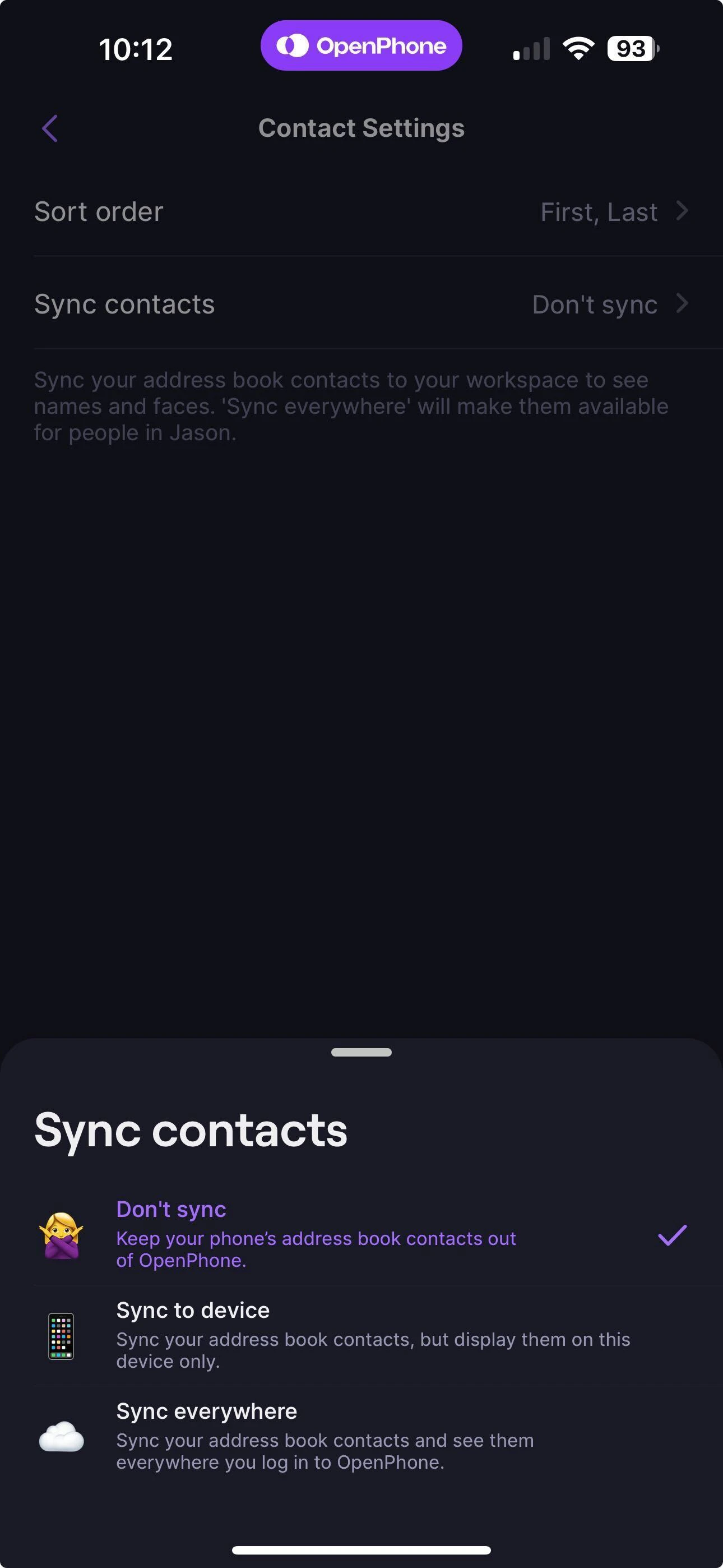
#### iOS contact sync
1. Open Quo and tap your account icon
2. Go to **Settings → Contacts**
3. Select **Sync Contacts** and choose:
* **Don't sync**: No syncing
* **Sync to device**: One-time import
* **Sync everywhere**: Available across all devices
 #### Android contact sync
Android contact sync currently has a bug. Use the Google Contacts workaround instead: sync your device contacts with Google Contacts, then integrate Google Contacts with Quo.
For manual permission management:
1. Open Android **Settings**
2. Go to **Apps & Notifications → Quo → Permissions**
3. Enable or disable **Contacts** permission
#### Android contact sync
Android contact sync currently has a bug. Use the Google Contacts workaround instead: sync your device contacts with Google Contacts, then integrate Google Contacts with Quo.
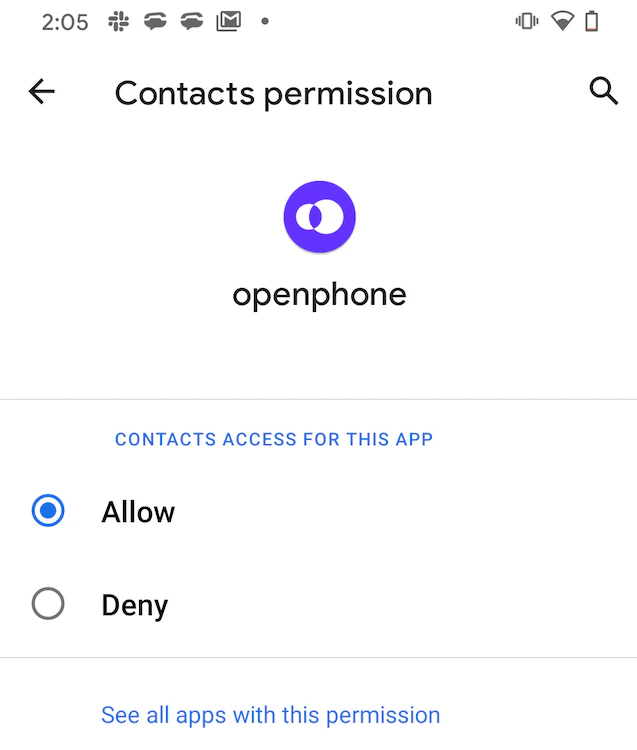
For manual permission management:
1. Open Android **Settings**
2. Go to **Apps & Notifications → Quo → Permissions**
3. Enable or disable **Contacts** permission
 ## Managing contact permissions
### Revoking device access
If you need to revoke Quo's access to your device contacts:
1. Open device **Settings**
2. Find **Quo** in your apps list
3. Turn **Contacts** OFF
## Managing contact permissions
### Revoking device access
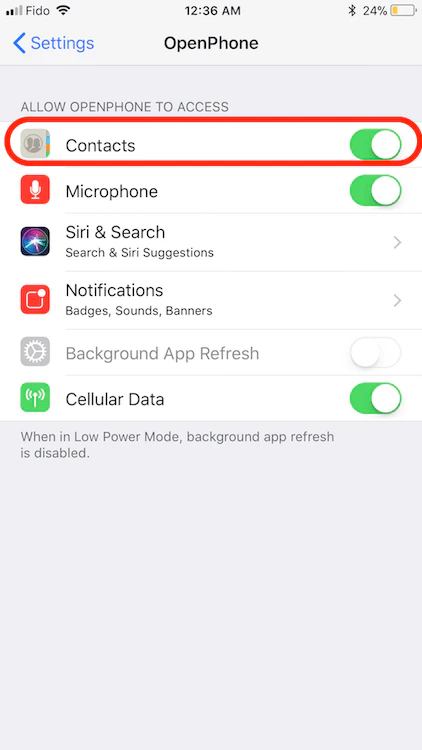
If you need to revoke Quo's access to your device contacts:
1. Open device **Settings**
2. Find **Quo** in your apps list
3. Turn **Contacts** OFF
 1. Go to device **Settings**
2. Select **Apps → Quo**
3. Tap **Permissions**
4. Disable **Contacts** permission
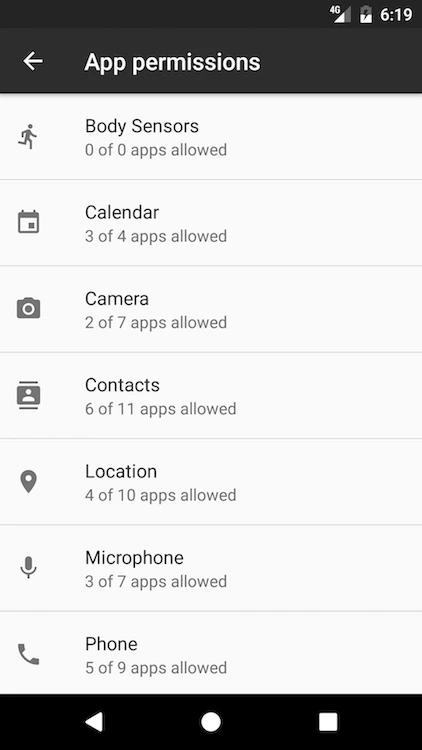
1. Go to device **Settings**
2. Select **Apps → Quo**
3. Tap **Permissions**
4. Disable **Contacts** permission
 ### Benefits of granting access
Allowing Quo to access your device contacts provides:
* Caller identification for incoming calls and messages
* Easy calling/texting without looking up numbers
* Seamless integration between personal and business contacts
## FAQs
Yes, export your contacts as a CSV file from your CRM and use our CSV import feature. Make sure to format the file according to our template requirements. You can also see if we have a direct integration with your CRM.
Quo will detect potential duplicates during import. You can merge duplicates manually after import using our contact merging feature.
Yes, you can connect multiple Google Contacts accounts to import contacts from different Google accounts.
No, you need to explicitly share imported contacts with team members using the bulk sharing feature or individual contact sharing settings.
Yes, you can export your Quo contacts as a CSV file from the web app for backup or migration purposes.
<>
## Additional integrations
Looking for more ways to manage contacts? Check out our [Zapier integration](https://support.quo.com/core-concepts/integrations/zapier) to sync contacts with other business applications.
Need help? [Submit a support request](https://support.quo.com/help/submit-a-request) and we'll assist you!
### Benefits of granting access
Allowing Quo to access your device contacts provides:
* Caller identification for incoming calls and messages
* Easy calling/texting without looking up numbers
* Seamless integration between personal and business contacts
## FAQs
Yes, export your contacts as a CSV file from your CRM and use our CSV import feature. Make sure to format the file according to our template requirements. You can also see if we have a direct integration with your CRM.
Quo will detect potential duplicates during import. You can merge duplicates manually after import using our contact merging feature.
Yes, you can connect multiple Google Contacts accounts to import contacts from different Google accounts.
No, you need to explicitly share imported contacts with team members using the bulk sharing feature or individual contact sharing settings.
Yes, you can export your Quo contacts as a CSV file from the web app for backup or migration purposes.
<>
## Additional integrations
Looking for more ways to manage contacts? Check out our [Zapier integration](https://support.quo.com/core-concepts/integrations/zapier) to sync contacts with other business applications.
Need help? [Submit a support request](https://support.quo.com/help/submit-a-request) and we'll assist you!