> ## Documentation Index
> Fetch the complete documentation index at: https://resource-center-zoho-crm-staging-feb20.mintlify.site/llms.txt
> Use this file to discover all available pages before exploring further.
# HubSpot
> Using Quo, formerly OpenPhone’s HubSpot integration allows you to connect your phone with your CRM. We’ll show you how to set up the integration and what’s possible.
## Overview
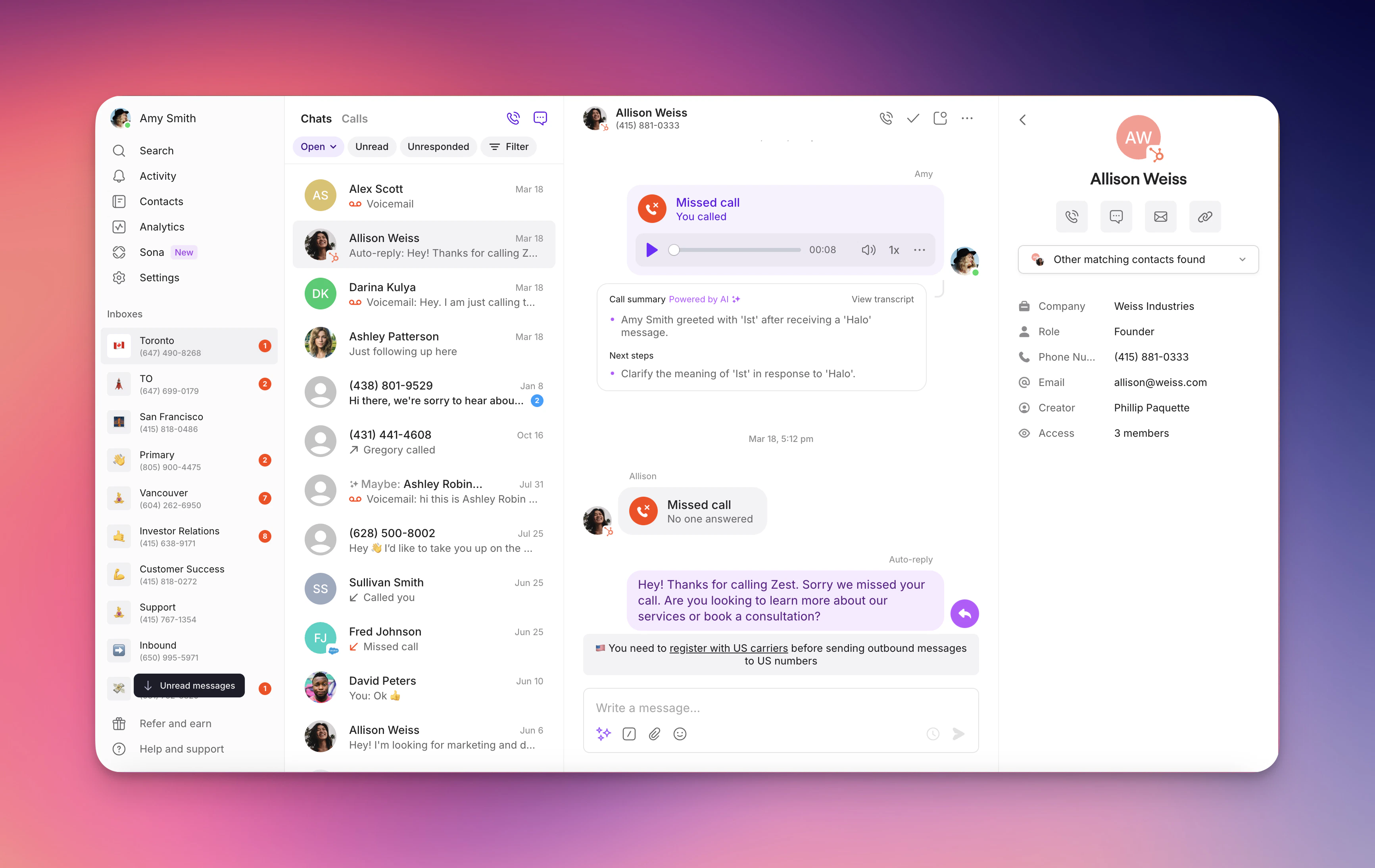
Quo's HubSpot integration connects your phone communications with your CRM, The HubSpot integration makes it easier to view contact details as a HubSpot contact, whenever a HubSpot contact calls or messages your Quo number. You don’t even have to add them as an Quo contact. The following fields from HubSpot are automatically imported into the contact profile in Quo:
HubSpot integration is available for Business and Scale plan customers. Requires Quo workspace Owner/Admin and HubSpot Super Admin permissions.
## How the integration works
### Contact syncing
**Automatic contact import:** When HubSpot contacts call or message your Quo numbers, their details automatically appear in Quo:
**Imported fields:**
* First name
* Last name
* Phone
* Email address
* Link to a HubSpot record
Additionally, if these fields are not empty in HubSpot, they will also display:
* Job title
* Company
 ### **Limitations of contact syncing with HubSpot**
Contact syncing with HubSpot has some limitations:
* To display HubSpot contact details, a call must be with a phone number that matches the number of an existing HubSpot contact’s phone number.
* Updating contacts in Quo does not update them as HubSpot contacts. If you need to update the name, email address, or phone number associated with a HubSpot contact, you need to make those changes directly in HubSpot.
* Contacts created and updated in Quo do not automatically sync to HubSpot at this time.
## **Integrated Quo activities logging to HubSpot contacts**
Activities done through Quo can all automatically be logged to a relevant contact in HubSpot! These include all of the following:
* Incoming calls
* Outgoing calls
* Call recordings
* Call summaries and next steps
* Voicemail
* Text messages
### **Limitations of contact syncing with HubSpot**
Contact syncing with HubSpot has some limitations:
* To display HubSpot contact details, a call must be with a phone number that matches the number of an existing HubSpot contact’s phone number.
* Updating contacts in Quo does not update them as HubSpot contacts. If you need to update the name, email address, or phone number associated with a HubSpot contact, you need to make those changes directly in HubSpot.
* Contacts created and updated in Quo do not automatically sync to HubSpot at this time.
## **Integrated Quo activities logging to HubSpot contacts**
Activities done through Quo can all automatically be logged to a relevant contact in HubSpot! These include all of the following:
* Incoming calls
* Outgoing calls
* Call recordings
* Call summaries and next steps
* Voicemail
* Text messages
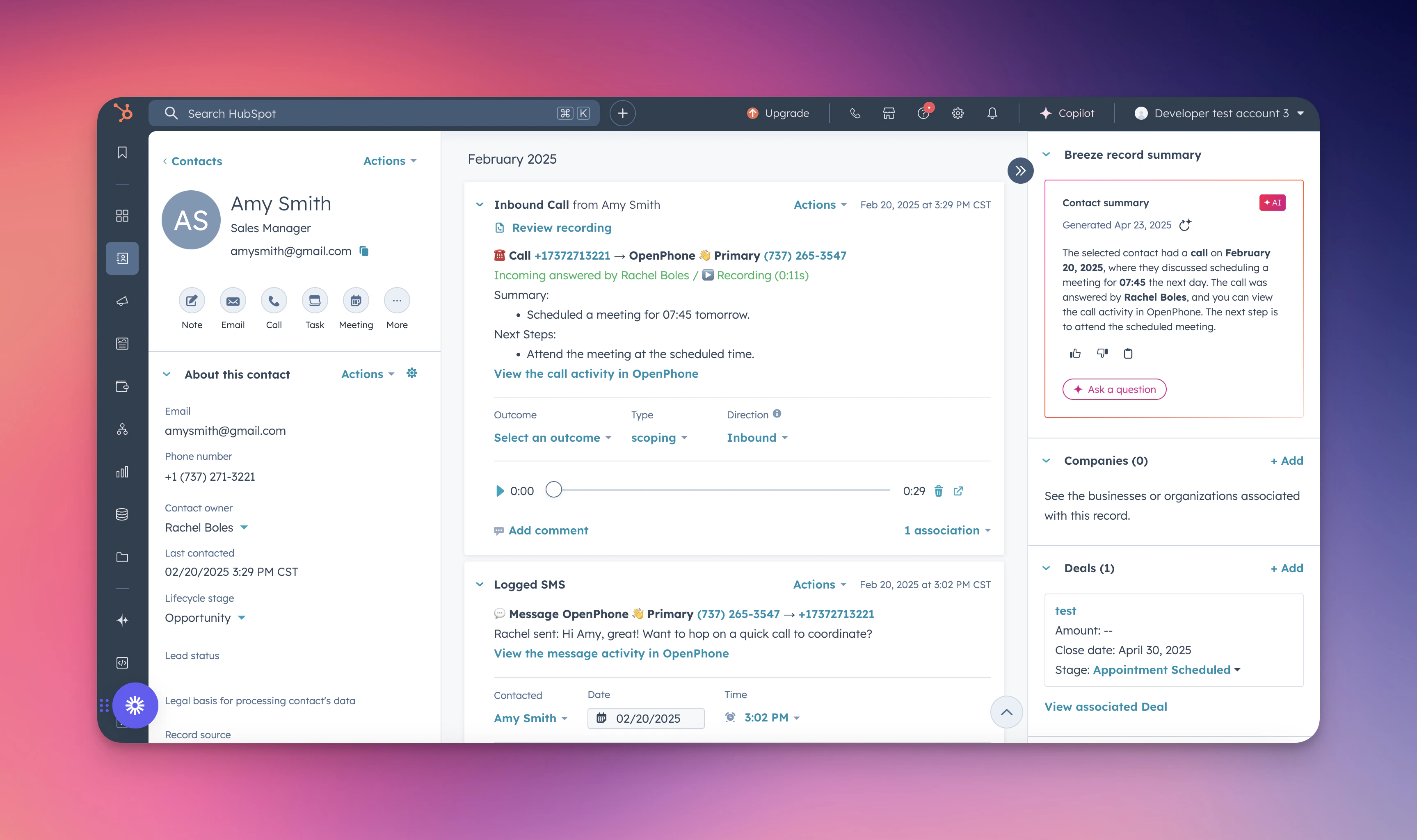 **Note**: Messages are now logged as SMS instead of being grouped under “call” types. This ensures accurate reporting for team performance analysis in HubSpot.
## Option to use HubSpot call minutes or not
You can call your contacts straight from HubSpot's app with your Quo number. Doing so means you won't be using the [call minutes in your HubSpot subscription](https://knowledge.hubspot.com/calling/use-the-calling-tool).
To call your HubSpot contacts without using your HubSpot call minutes, follow these steps:
1. First, [make Quo the default app](https://support.quo.com/core-concepts/calling/click-to-call#install-and-configure-openphone) for calling on your computer.
2. Select a contact in HubSpot and hover over their phone number. You'll see a share icon.
3. Click the icon for the option to call that number in Quo.
**Note**: Messages are now logged as SMS instead of being grouped under “call” types. This ensures accurate reporting for team performance analysis in HubSpot.
## Option to use HubSpot call minutes or not
You can call your contacts straight from HubSpot's app with your Quo number. Doing so means you won't be using the [call minutes in your HubSpot subscription](https://knowledge.hubspot.com/calling/use-the-calling-tool).
To call your HubSpot contacts without using your HubSpot call minutes, follow these steps:
1. First, [make Quo the default app](https://support.quo.com/core-concepts/calling/click-to-call#install-and-configure-openphone) for calling on your computer.
2. Select a contact in HubSpot and hover over their phone number. You'll see a share icon.
3. Click the icon for the option to call that number in Quo.
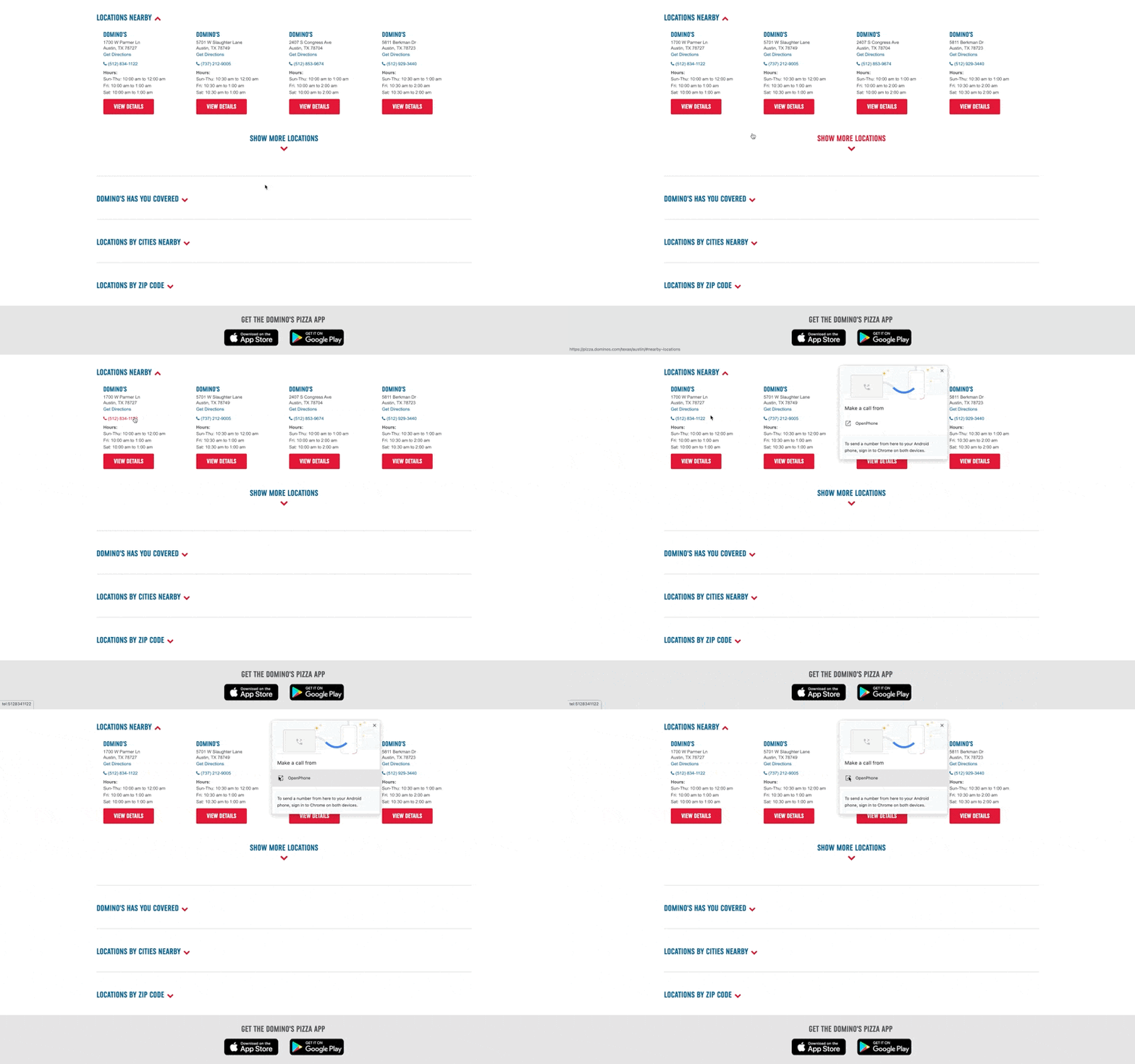 After clicking the pop up, you'll be taken to the Quo desktop app where you can click **Call** to dial that number.
## **Who can access and set up the HubSpot integration?**
All customers on the [Quo Scale and Business plans](https://support.quo.com/core-concepts/administration/billing/pricing#plan-comparison) have access the integration. Only an Quo workspace Owner or Admin user can set up the integration.
From within HubSpot, you can access this integration with any HubSpot plan. However, you'll need to have [super admin](https://knowledge.hubspot.com/settings/create-roles) permissions in order to connect HubSpot to Quo.
## **How to set up the HubSpot integration**
1. If you are an Quo workspace owner or admin, go to the Quo [web](https://my.quo.com/signup) or desktop app.
2. In your workspace, select [Integrations](https://my.quo.com/settings/integrations).
3. Select HubSpot and click the **Connect to HubSpot** button.
After clicking the pop up, you'll be taken to the Quo desktop app where you can click **Call** to dial that number.
## **Who can access and set up the HubSpot integration?**
All customers on the [Quo Scale and Business plans](https://support.quo.com/core-concepts/administration/billing/pricing#plan-comparison) have access the integration. Only an Quo workspace Owner or Admin user can set up the integration.
From within HubSpot, you can access this integration with any HubSpot plan. However, you'll need to have [super admin](https://knowledge.hubspot.com/settings/create-roles) permissions in order to connect HubSpot to Quo.
## **How to set up the HubSpot integration**
1. If you are an Quo workspace owner or admin, go to the Quo [web](https://my.quo.com/signup) or desktop app.
2. In your workspace, select [Integrations](https://my.quo.com/settings/integrations).
3. Select HubSpot and click the **Connect to HubSpot** button.
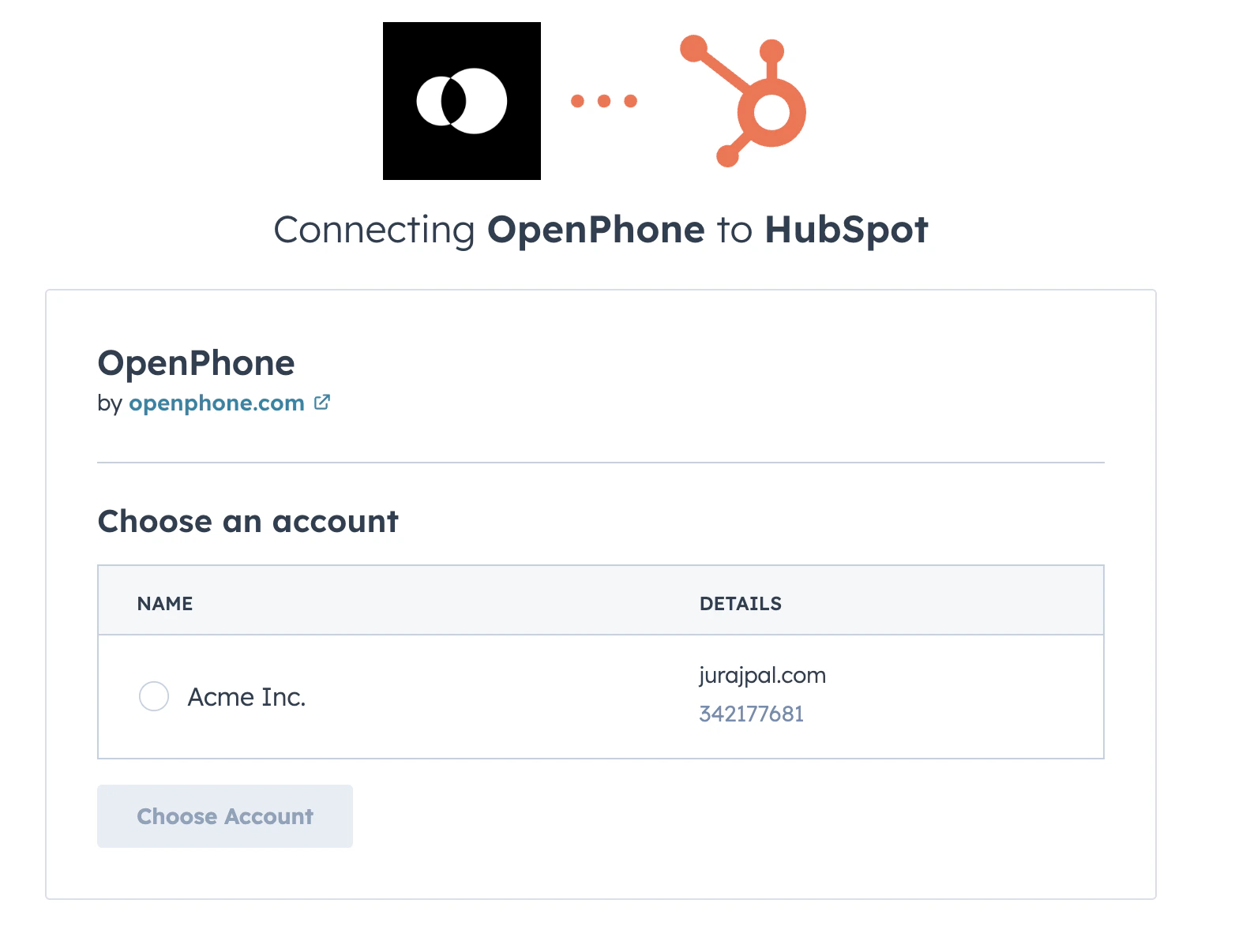
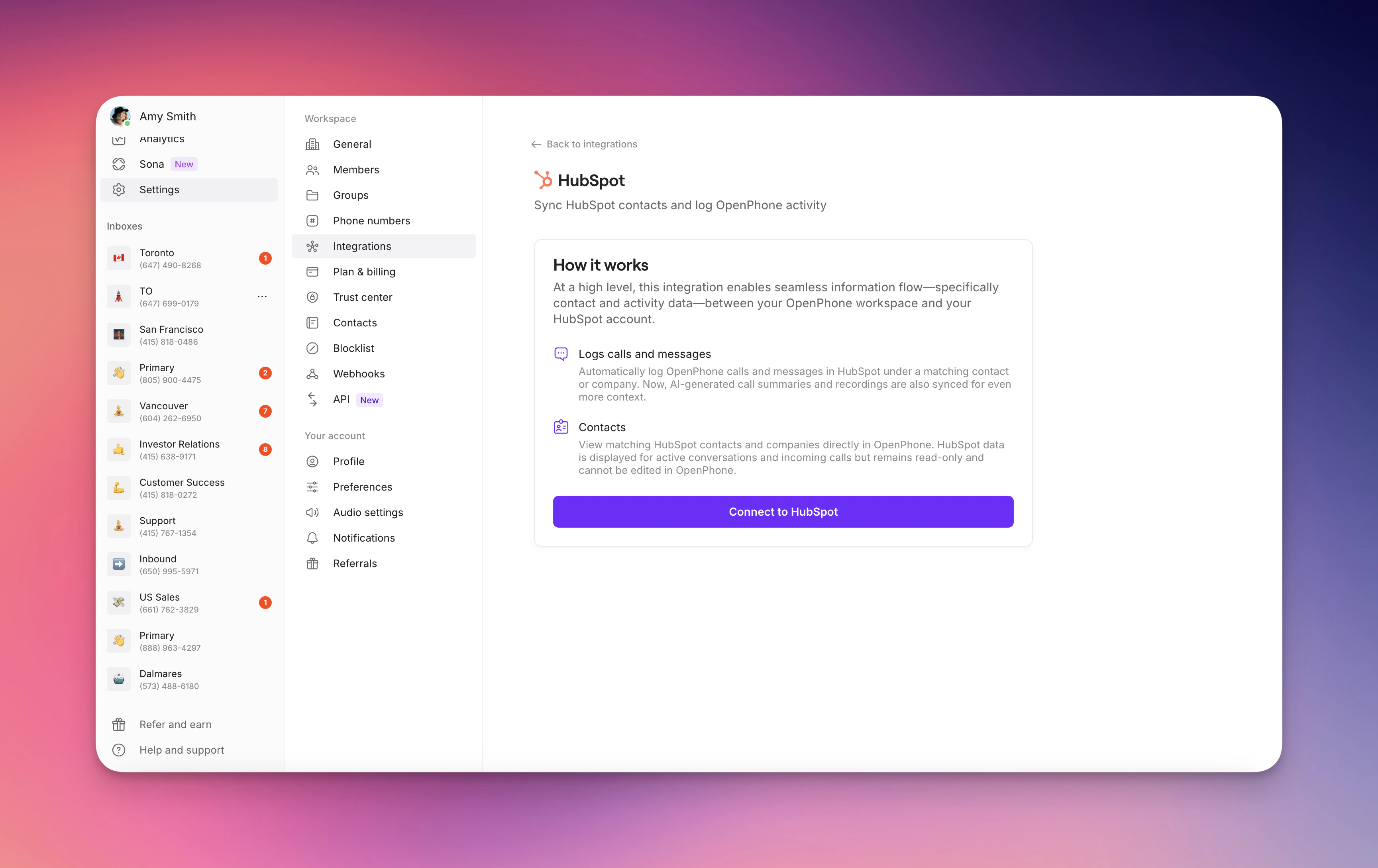 HubSpot will ask you to confirm the HubSpot account you want to connect to Quo. Click the bubble to the left of your selected account name.
 5. After clicking **Choose Account** to confirm, you’ll be redirected back to the integration settings in Quo.
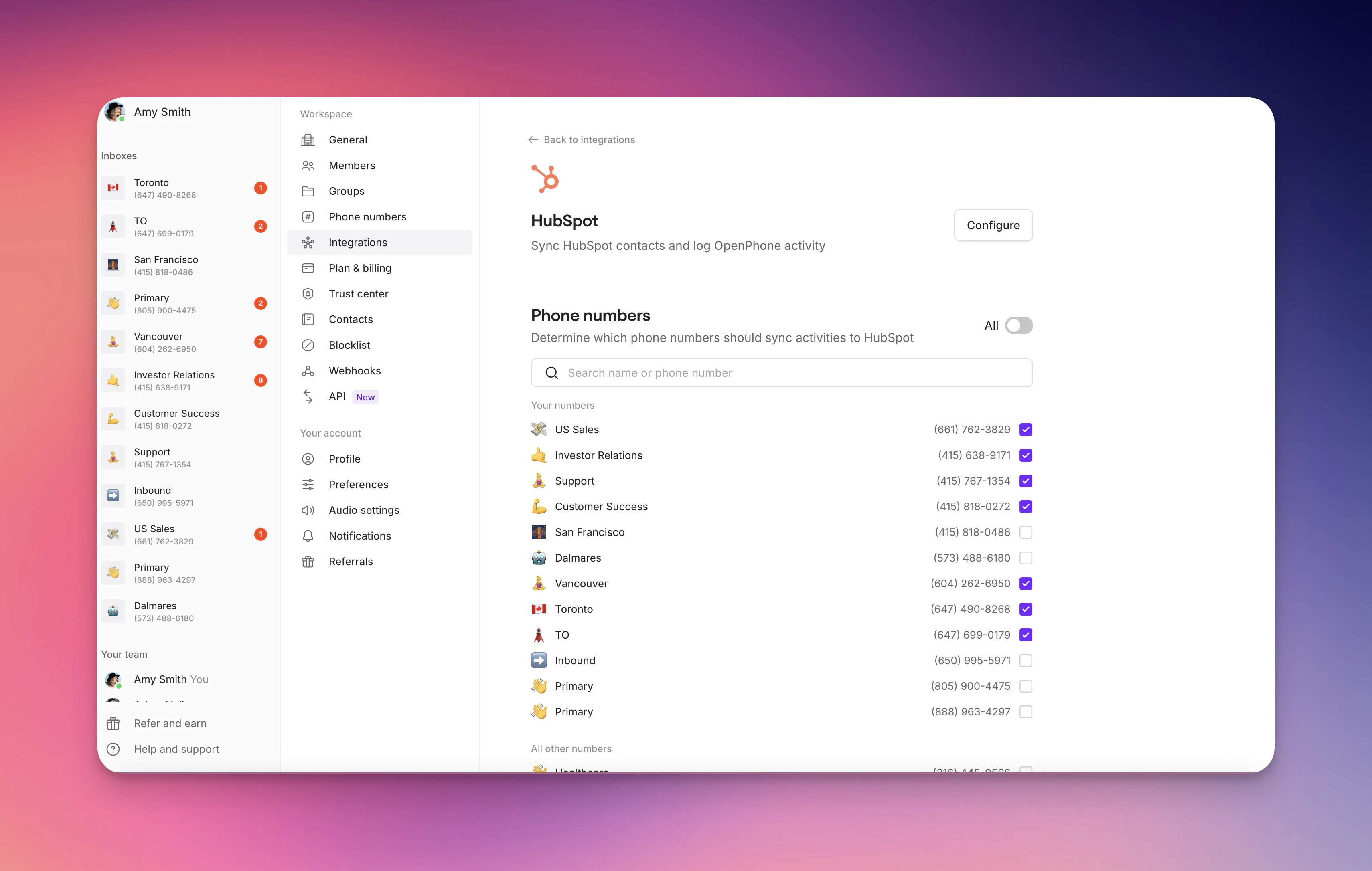
6. Scroll down to **Phone Numbers**. Here, you can toggle on and off:
* **Auto-log calls** - Toggling on automatically logs incoming and outgoing calls to the matching contact or company in HubSpot.
* **Auto-log messages** - Toggling on automatically logs incoming and outgoing messages to the matching contact or company in HubSpot (**Note**: this setting currently auto-logs SMS messages. [MMS messages](https://support.quo.com/core-concepts/messaging/overview#sending-pictures-and-attachments) sent through Quo will show as a blank message in HubSpot currently. However, a sales rep can add the image, GIF, or video into the log history in HubSpot by clicking into the blank message in HubSpot and clicking **Save**).
5. After clicking **Choose Account** to confirm, you’ll be redirected back to the integration settings in Quo.
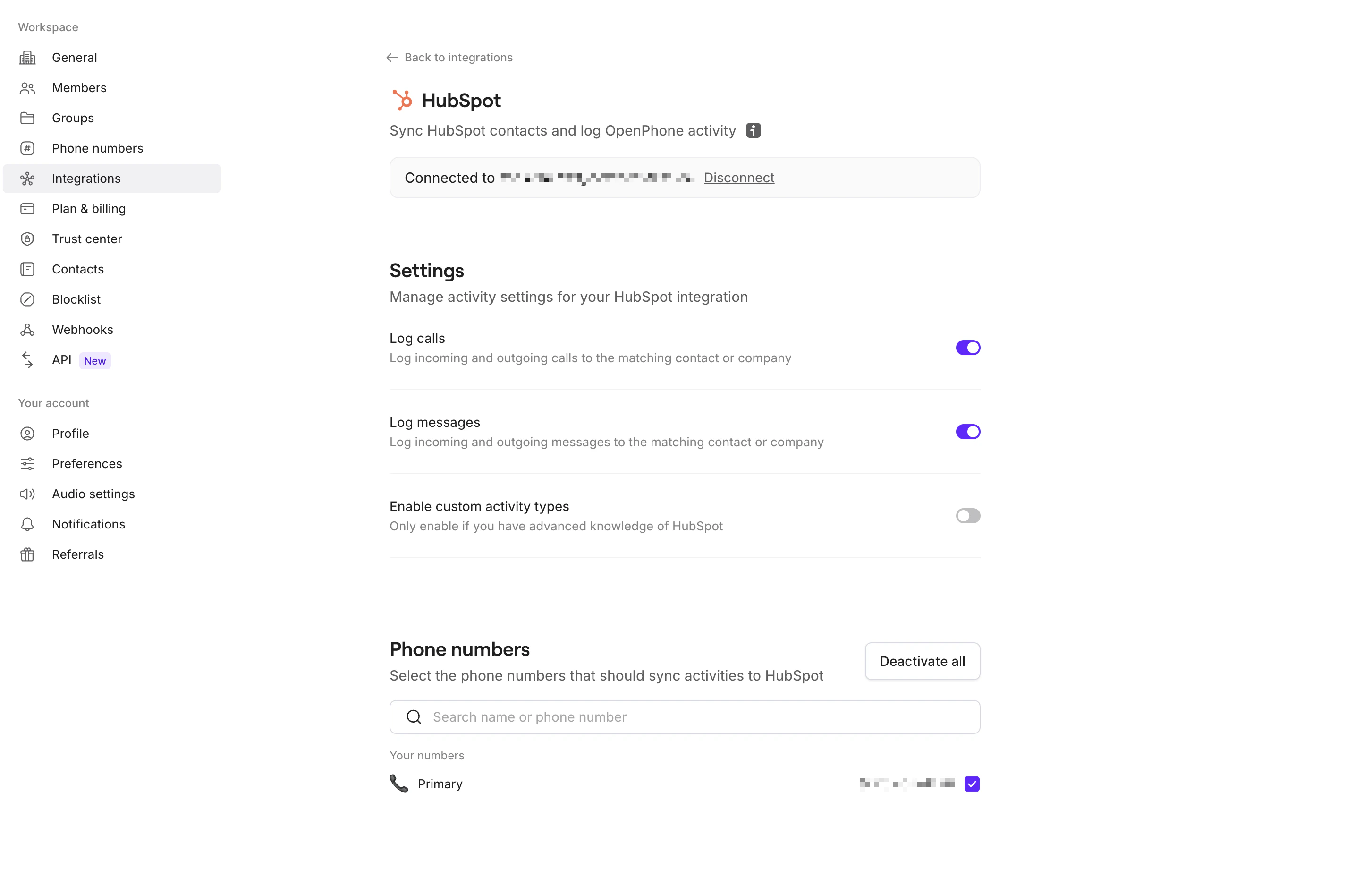
6. Scroll down to **Phone Numbers**. Here, you can toggle on and off:
* **Auto-log calls** - Toggling on automatically logs incoming and outgoing calls to the matching contact or company in HubSpot.
* **Auto-log messages** - Toggling on automatically logs incoming and outgoing messages to the matching contact or company in HubSpot (**Note**: this setting currently auto-logs SMS messages. [MMS messages](https://support.quo.com/core-concepts/messaging/overview#sending-pictures-and-attachments) sent through Quo will show as a blank message in HubSpot currently. However, a sales rep can add the image, GIF, or video into the log history in HubSpot by clicking into the blank message in HubSpot and clicking **Save**).
 ### Using Quo minutes
**Click-to-call without HubSpot minutes:**
1. [Set Quo as default calling app](https://support.quo.com/core-concepts/integrations/deep-linking) on your computer
2. Hover over phone number in HubSpot contact
3. Click share icon that appears
4. Select option to call in Quo
5. Complete call in Quo desktop app
## **How to disconnect the HubSpot integration**
If you wish to uninstall your HubSpot integration, there are two ways to do so:
* In your Quo workspace, navigate to **Settings >** **Integration >** **HubSpot**. There click **Disconnect.**
* In HubSpot, to deactivate the Quo app navigate to your **Connected apps** and uninstall. For more details on this, please visit [this page](https://knowledge.hubspot.com/integrations/connect-apps-to-hubspot#uninstall-an-app).
It is important to note that during the time your integration is inactive, calls or activities will not log, and retroactive logging of that data is not possible. Please keep this in mind should you decide to manually deactivate your integration for any reason. All data will be stored within Quo as normal.
Looking for more ways to bring together Quo and other features in HubSpot? Check out our [Zapier integration](https://zapier.com/apps/openphone/integrations/hubspot).
### Using Quo minutes
**Click-to-call without HubSpot minutes:**
1. [Set Quo as default calling app](https://support.quo.com/core-concepts/integrations/deep-linking) on your computer
2. Hover over phone number in HubSpot contact
3. Click share icon that appears
4. Select option to call in Quo
5. Complete call in Quo desktop app
## **How to disconnect the HubSpot integration**
If you wish to uninstall your HubSpot integration, there are two ways to do so:
* In your Quo workspace, navigate to **Settings >** **Integration >** **HubSpot**. There click **Disconnect.**
* In HubSpot, to deactivate the Quo app navigate to your **Connected apps** and uninstall. For more details on this, please visit [this page](https://knowledge.hubspot.com/integrations/connect-apps-to-hubspot#uninstall-an-app).
It is important to note that during the time your integration is inactive, calls or activities will not log, and retroactive logging of that data is not possible. Please keep this in mind should you decide to manually deactivate your integration for any reason. All data will be stored within Quo as normal.
Looking for more ways to bring together Quo and other features in HubSpot? Check out our [Zapier integration](https://zapier.com/apps/openphone/integrations/hubspot).