> ## Documentation Index
> Fetch the complete documentation index at: https://resource-center-zoho-crm-staging-feb20.mintlify.site/llms.txt
> Use this file to discover all available pages before exploring further.
# Claude or ChatGPT
> Connect Quo to Claude or ChatGPT. Ask questions in natural language. Send texts, pull messages, retrieve call transcripts—no coding required.
## Overview
This integration brings Quo directly into your AI assistant. You can send texts, check messages, and pull call transcripts using natural conversation—no clicking around, no switching apps.
Think of it like having a Quo remote control inside your AI chat. Ask questions in plain English, and your AI assistant handles the rest.
This integration is currently in beta. Features and functionality may change.
## How it works
The integration uses a Model Context Protocol (MCP) server. This is a bridge that lets Claude or ChatGPT talk to your Quo account securely.
### Get your API key
You need a Quo API key to connect. This key proves you own the account.
1. Log in to Quo with owner or admin access
2. Go to **Settings → API**
3. Click **Generate API key**
4. Give it a name like "Claude Integration"
5. Copy the key—you'll paste it during setup
Need a Quo account? [Create one here](https://support.quo.com/getting-started/sign-up).
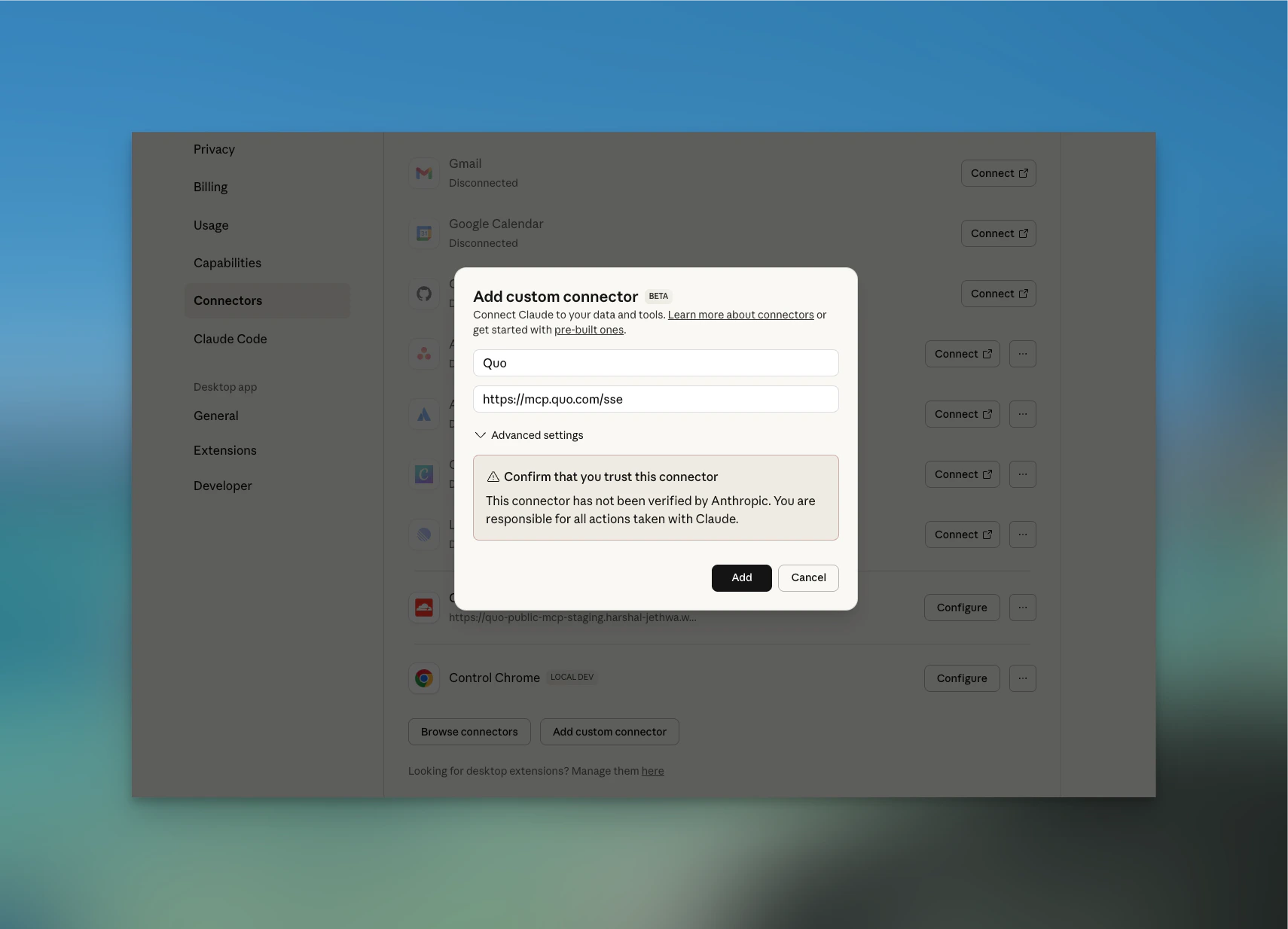
### Connect to Claude
Requires a paid Claude plan (Pro or Team)
1. Open Claude and go to **Admin Settings → Integrations**
2. Click **Add custom integration**
3. Name it **Quo**
4. Paste this URL: `https://mcp.quo.com/sse`
5. Click **Connect**
6. Go to **Settings** **→ Connect**
7. Click **Connect**
8. Paste your API key when prompted
 ### Connect to ChatGPT
Requires ChatGPT Plus or Pro. You must set up custom connectors from the ChatGPT website ([chatgpt.com](http://chatgpt.com)), not the mobile or desktop app.
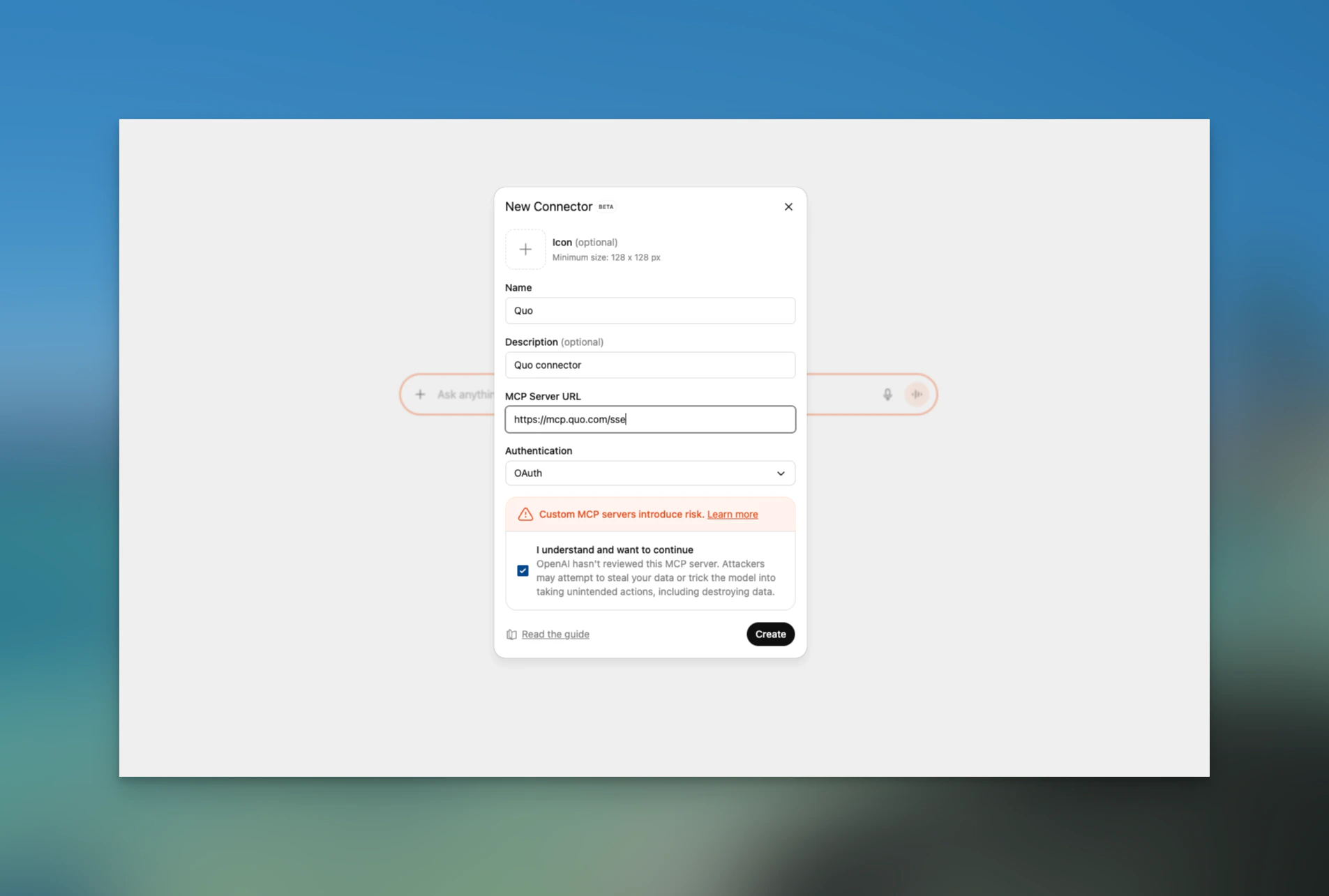
1. Open ChatGPT and go to **Settings → Apps & Connectors**
2. Turn on **Developer mode** under Advanced settings
3. Click the **Create** button at the top of the Apps & Connectors page
4. Name it **Quo**
5. Paste this URL: `https://mcp.quo.com/sse`
6. Set Authorization as 'OAuth'
7. Complete the setup and paste your API key
### Connect to ChatGPT
Requires ChatGPT Plus or Pro. You must set up custom connectors from the ChatGPT website ([chatgpt.com](http://chatgpt.com)), not the mobile or desktop app.
1. Open ChatGPT and go to **Settings → Apps & Connectors**
2. Turn on **Developer mode** under Advanced settings
3. Click the **Create** button at the top of the Apps & Connectors page
4. Name it **Quo**
5. Paste this URL: `https://mcp.quo.com/sse`
6. Set Authorization as 'OAuth'
7. Complete the setup and paste your API key
 ## What you can do
Once connected, talk to your AI assistant like you'd talk to a teammate. Here are some examples:
**Analyze call patterns** "Pull my last 100 calls from +1 (415) 555-1234 and summarize: what questions do prospects ask most?
**Send a text** "Text (555) 222-7788 from my (415) 158-4875 number: Running 10 minutes late."
**Check recent messages** "Show my last 10 texts with +1 (415) 555-0134."
**Get voicemail transcripts** "Pull today's voicemails for our main number."
**Send bulk messages** "Send this update to the entire crew: Job site moved to Oak Street."
**Create a contact** "Add Mary Lopez from ACME HVAC, phone (555) 222-7788, role Dispatcher."
**Review message history** "Get all messages from this morning on our support line."
## Key benefits at a glance
No more switching between Claude, ChatGPT, and Quo. Everything in one place.
Just ask for what you need. No clicking through menus or remembering steps.
Especially useful in the field or when you're busy with other tasks.
Text your entire team in seconds. No copy-pasting phone numbers.
## Available actions
This action uses your API messaging credits. [Learn about pricing](https://www.quo.com/docs/mdx/pricing-support/pricing-overview).
Send one text to a single recipient from your Quo number.
**Example:** "Text (555) 222-7788 from my main line: Running 10 minutes late."
This action uses your API messaging credits. [Learn about pricing](https://www.quo.com/docs/mdx/pricing-support/pricing-overview).
Send the same text to multiple people at once.
**Example:** "Text these five crew members: Meeting moved to 7am tomorrow."
Pull your message history from any Quo inbox. You can filter by contact or date.
**Example:** "Show the last 20 messages on our main line from yesterday."
Retrieve call history and voicemail transcripts from your Quo number.
**Example:** "Get all voicemail transcripts from this morning."
Only available on plans with transcription enabled.
Add new contacts to your Quo workspace with name, company, phone, and email.
**Example:** "Add contact: John Smith, ABC Plumbing, (555) 123-4567, role Foreman."
## Safety and permissions
Your AI assistant can only do what your Quo account already allows. It can't access anything extra or hidden.
Before sending any text or creating a contact, your AI assistant asks for your approval. You stay in control.
The integration only accesses what your Quo account can already see. No elevated permissions.
Remove the integration from your AI assistant's settings whenever you want.
## Frequently asked questions
Your key might be expired or mistyped. Go back to Quo and generate a fresh key. Delete the old integration in your AI assistant and set it up again with the new key.
Make sure you're using the full number with country code (like `+14155550100`). You can also use the number ID from your Quo settings.
Check that the number has message history. If you're searching a specific contact, make sure you spelled their number correctly. Try increasing the result limit or widening your date range.
Transcripts are only available on certain Quo plans and only for calls where transcription was turned on. Check your plan settings or widen your date search.
This is normal for some setups. Just reconnect—your settings are saved and you won't need to re-enter everything.
Your API key is encrypted and handled securely. The integration only accesses what your Quo account can already see. Treat your API key like a password—don't share it publicly.
## Need help?
If something isn't working, email [**zoran.slamkov@quo.com**](mailto:zoran.slamkov@quo.com) with:
* The exact error message
* When it happened
* Whether you're using Claude or ChatGPT
## What you can do
Once connected, talk to your AI assistant like you'd talk to a teammate. Here are some examples:
**Analyze call patterns** "Pull my last 100 calls from +1 (415) 555-1234 and summarize: what questions do prospects ask most?
**Send a text** "Text (555) 222-7788 from my (415) 158-4875 number: Running 10 minutes late."
**Check recent messages** "Show my last 10 texts with +1 (415) 555-0134."
**Get voicemail transcripts** "Pull today's voicemails for our main number."
**Send bulk messages** "Send this update to the entire crew: Job site moved to Oak Street."
**Create a contact** "Add Mary Lopez from ACME HVAC, phone (555) 222-7788, role Dispatcher."
**Review message history** "Get all messages from this morning on our support line."
## Key benefits at a glance
No more switching between Claude, ChatGPT, and Quo. Everything in one place.
Just ask for what you need. No clicking through menus or remembering steps.
Especially useful in the field or when you're busy with other tasks.
Text your entire team in seconds. No copy-pasting phone numbers.
## Available actions
This action uses your API messaging credits. [Learn about pricing](https://www.quo.com/docs/mdx/pricing-support/pricing-overview).
Send one text to a single recipient from your Quo number.
**Example:** "Text (555) 222-7788 from my main line: Running 10 minutes late."
This action uses your API messaging credits. [Learn about pricing](https://www.quo.com/docs/mdx/pricing-support/pricing-overview).
Send the same text to multiple people at once.
**Example:** "Text these five crew members: Meeting moved to 7am tomorrow."
Pull your message history from any Quo inbox. You can filter by contact or date.
**Example:** "Show the last 20 messages on our main line from yesterday."
Retrieve call history and voicemail transcripts from your Quo number.
**Example:** "Get all voicemail transcripts from this morning."
Only available on plans with transcription enabled.
Add new contacts to your Quo workspace with name, company, phone, and email.
**Example:** "Add contact: John Smith, ABC Plumbing, (555) 123-4567, role Foreman."
## Safety and permissions
Your AI assistant can only do what your Quo account already allows. It can't access anything extra or hidden.
Before sending any text or creating a contact, your AI assistant asks for your approval. You stay in control.
The integration only accesses what your Quo account can already see. No elevated permissions.
Remove the integration from your AI assistant's settings whenever you want.
## Frequently asked questions
Your key might be expired or mistyped. Go back to Quo and generate a fresh key. Delete the old integration in your AI assistant and set it up again with the new key.
Make sure you're using the full number with country code (like `+14155550100`). You can also use the number ID from your Quo settings.
Check that the number has message history. If you're searching a specific contact, make sure you spelled their number correctly. Try increasing the result limit or widening your date range.
Transcripts are only available on certain Quo plans and only for calls where transcription was turned on. Check your plan settings or widen your date search.
This is normal for some setups. Just reconnect—your settings are saved and you won't need to re-enter everything.
Your API key is encrypted and handled securely. The integration only accesses what your Quo account can already see. Treat your API key like a password—don't share it publicly.
## Need help?
If something isn't working, email [**zoran.slamkov@quo.com**](mailto:zoran.slamkov@quo.com) with:
* The exact error message
* When it happened
* Whether you're using Claude or ChatGPT