> ## Documentation Index
> Fetch the complete documentation index at: https://resource-center-zoho-crm-staging-feb20.mintlify.site/llms.txt
> Use this file to discover all available pages before exploring further.
# Text messaging
> Send SMS and MMS messages, use AI-suggested responses, and manage attachments with comprehensive messaging features
## Overview
Quo, formerly OpenPhone's text messaging supports both SMS and MMS messages with rich features including AI-suggested responses, file attachments, and multimedia content. Send pictures, videos, documents, and GIFs to communicate effectively with customers and team members.
## Sending messages
### Basic text messages
**Character limits:**
* **Single SMS**: 160 characters maximum. If you send a longer text, your recipients will not notice this limit as modern devices will reassamble the message for the reader.
* **Extended messages**: Up to 1,600 characters (split into segments)
* **Unicode/Emoji messages**: 70 characters per segment
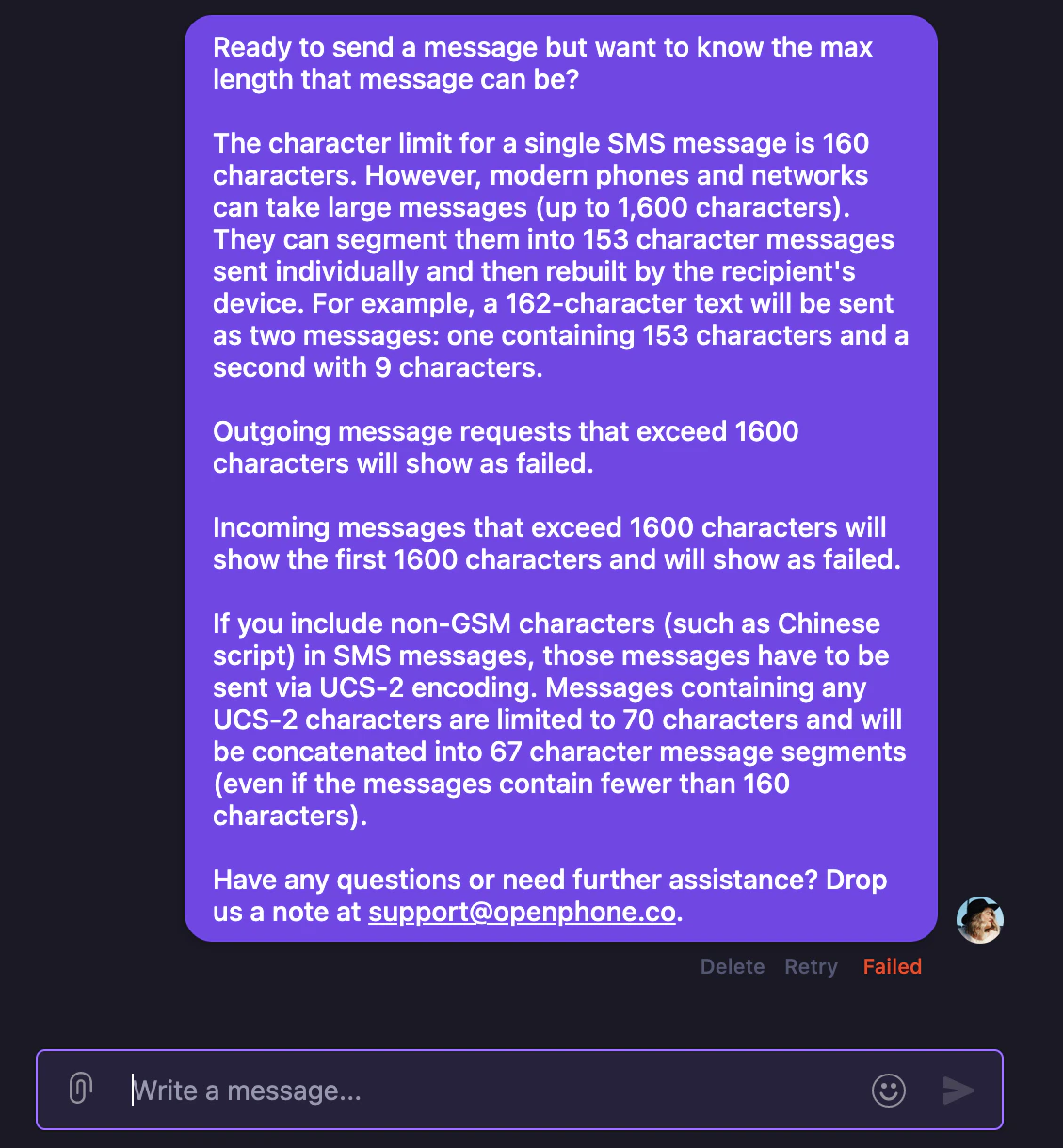
Messages longer than 160 characters are automatically split into segments of 153 characters each and reassembled by the recipient's device.
Messages exceeding 1,600 characters will fail to send. Break long content into multiple messages.
## Multimedia messaging (MMS)
### Sending pictures and attachments
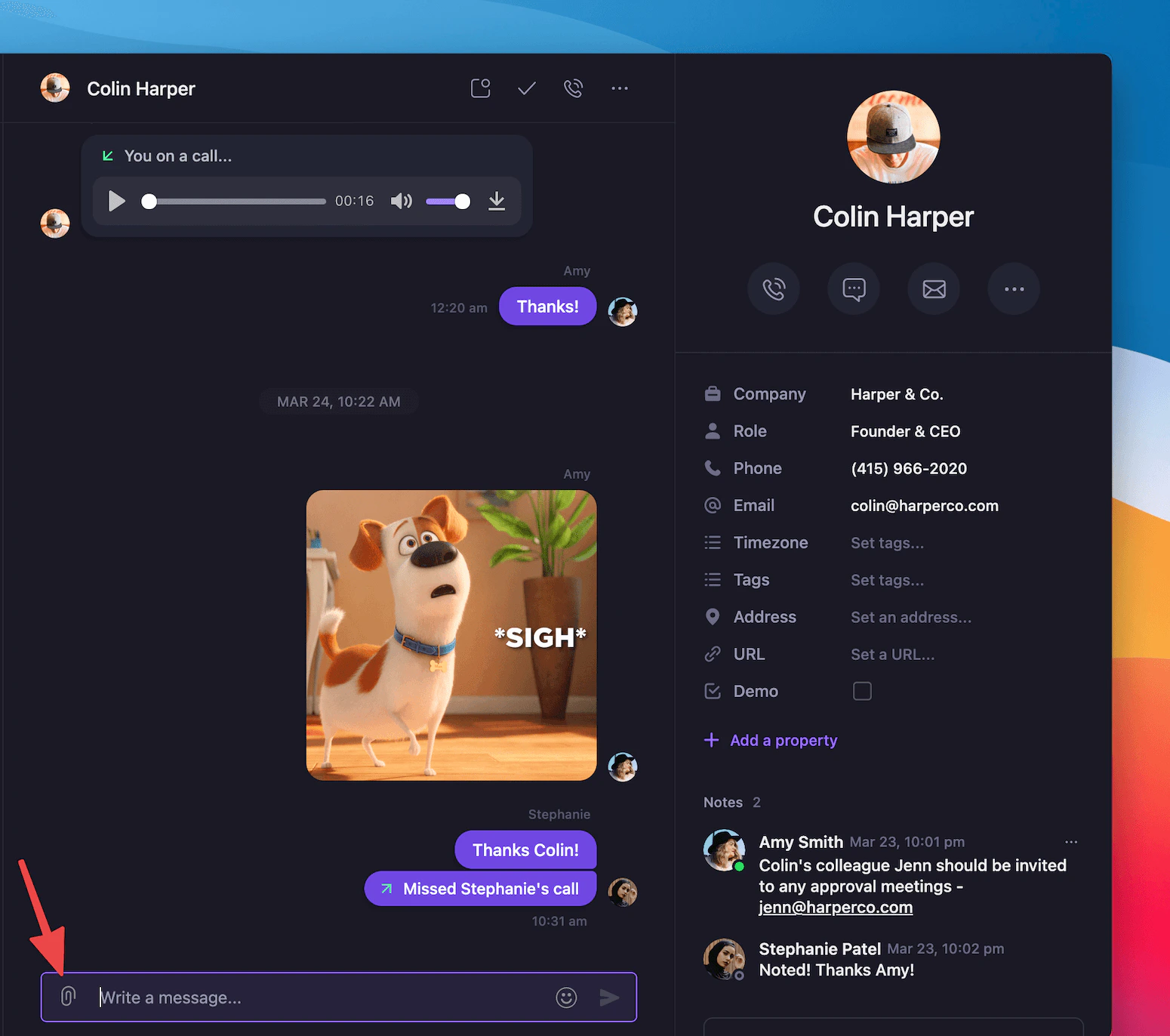
1. Click the **📎** icon next to "Write a message"
2. Upload your image or file
3. Add your message text and send
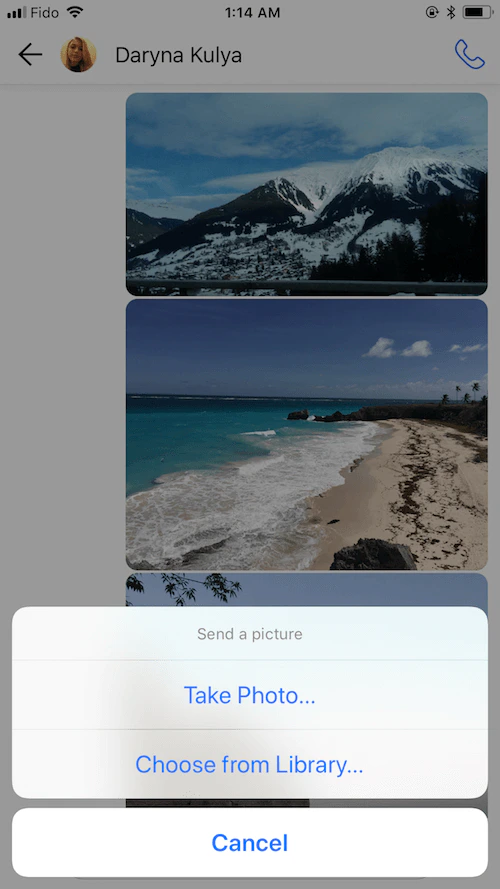
 1. Click the **🖼** icon in your messaging thread
2. Take a photo or upload from your library
3. Add your message text and send
1. Click the **🖼** icon in your messaging thread
2. Take a photo or upload from your library
3. Add your message text and send
 You can also copy and paste images directly into conversations.
### File size and image limits
**Attachment limits:**
* **Maximum file size**: 5MB per message
* **Images per message**: Up to 10 images
* **Supported formats**: JPEG, PNG, GIF, PDF, and other common file types
### Carrier-specific MMS limits
Different carriers have varying size limits for receiving MMS:
**US/Canadian local numbers:**
* **AT\&T**: 0.6MB
* **T-Mobile**: 1.5MB
* **Verizon**: 0.675MB
**Toll-free numbers**: 0.6MB standard limit
For best compatibility, keep attachments under 600KB when unsure of the recipient's carrier.
### Picture quality
Quo automatically resizes images under 5MB that exceed receiving carrier limits. For best picture quality when the recipient's carrier is unknown, send images under 600KB.
## Supported content types
You can send various types of content through Quo:
* **Pictures (MMS)**: JPEG, PNG, and other image formats
* **Videos**: Video files within size limits
* **GIFs**: Use GIPHY integration by typing "/" in message field
* **Documents**: Spreadsheets, PDFs, and other file types
* **Contacts**: Share contact information
* **Reactions**: Emoji reactions to messages
## AI-suggested responses
### How AI responses work
Quo uses AI to suggest 2-3 relevant replies based on conversation context. Available on all platforms (web, desktop, iOS, Android) for all users.
### Using AI suggestions
1. **Basic suggestions**: Type `/AI` in any conversation to get context-based response options
2. **Custom prompts**: Type `/AI` followed by specific instructions
You can also copy and paste images directly into conversations.
### File size and image limits
**Attachment limits:**
* **Maximum file size**: 5MB per message
* **Images per message**: Up to 10 images
* **Supported formats**: JPEG, PNG, GIF, PDF, and other common file types
### Carrier-specific MMS limits
Different carriers have varying size limits for receiving MMS:
**US/Canadian local numbers:**
* **AT\&T**: 0.6MB
* **T-Mobile**: 1.5MB
* **Verizon**: 0.675MB
**Toll-free numbers**: 0.6MB standard limit
For best compatibility, keep attachments under 600KB when unsure of the recipient's carrier.
### Picture quality
Quo automatically resizes images under 5MB that exceed receiving carrier limits. For best picture quality when the recipient's carrier is unknown, send images under 600KB.
## Supported content types
You can send various types of content through Quo:
* **Pictures (MMS)**: JPEG, PNG, and other image formats
* **Videos**: Video files within size limits
* **GIFs**: Use GIPHY integration by typing "/" in message field
* **Documents**: Spreadsheets, PDFs, and other file types
* **Contacts**: Share contact information
* **Reactions**: Emoji reactions to messages
## AI-suggested responses
### How AI responses work
Quo uses AI to suggest 2-3 relevant replies based on conversation context. Available on all platforms (web, desktop, iOS, Android) for all users.
### Using AI suggestions
1. **Basic suggestions**: Type `/AI` in any conversation to get context-based response options
2. **Custom prompts**: Type `/AI` followed by specific instructions
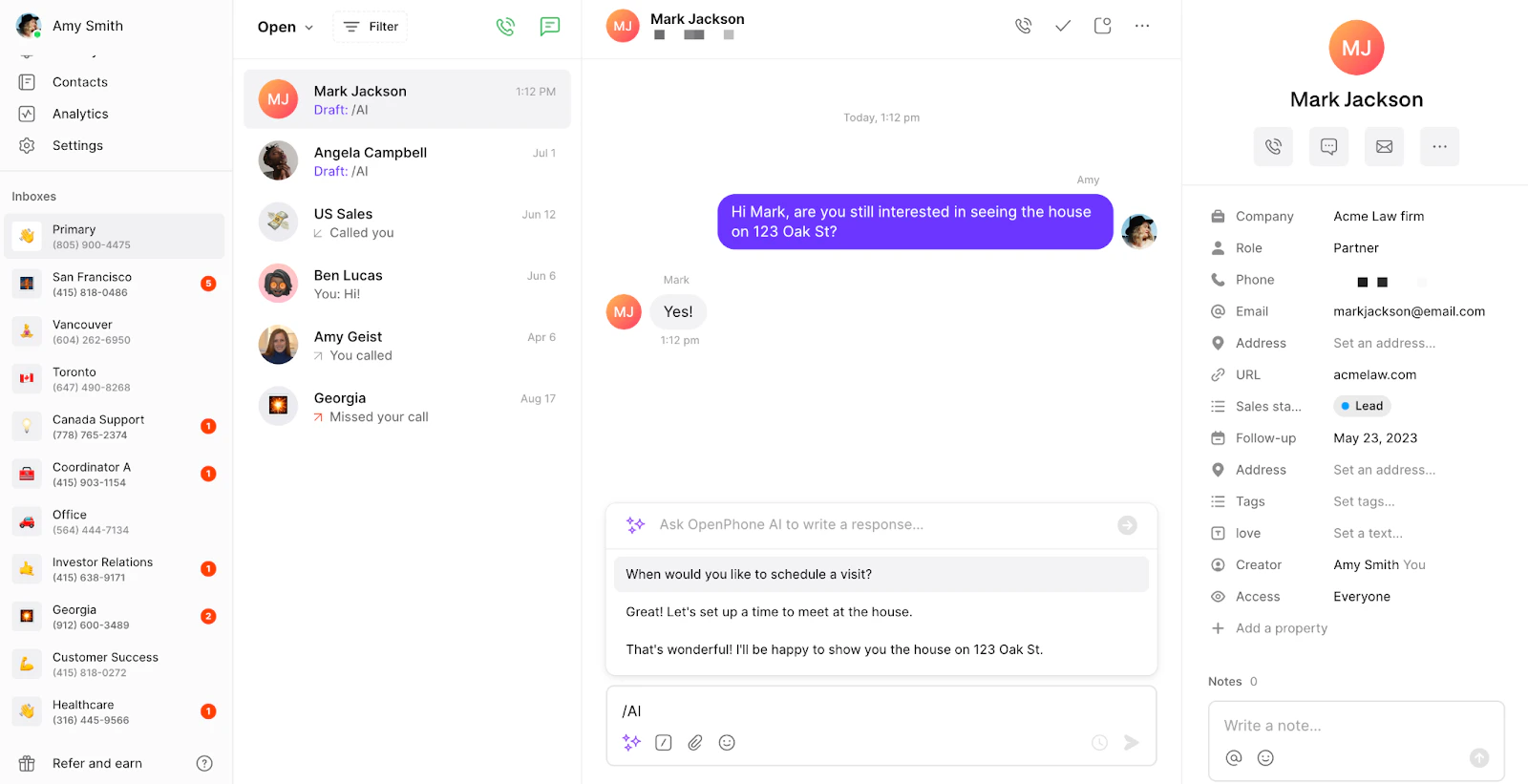 **Example prompt**: "/AI Create a short, friendly text that confirms a customer's appointment on Monday at 9 am."
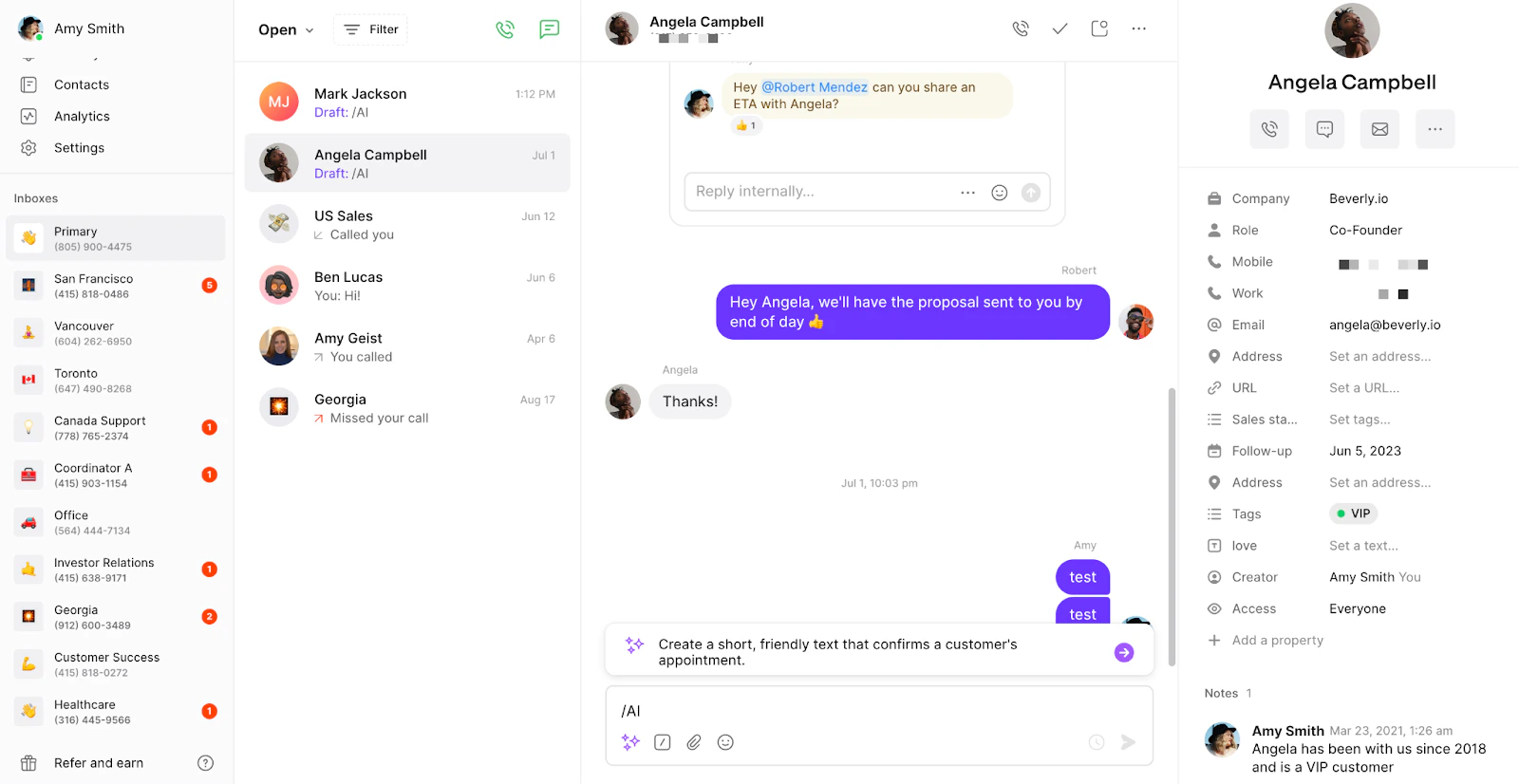 Save useful AI-generated responses as snippets for future reuse.
## Message management
### Saving and storing messages
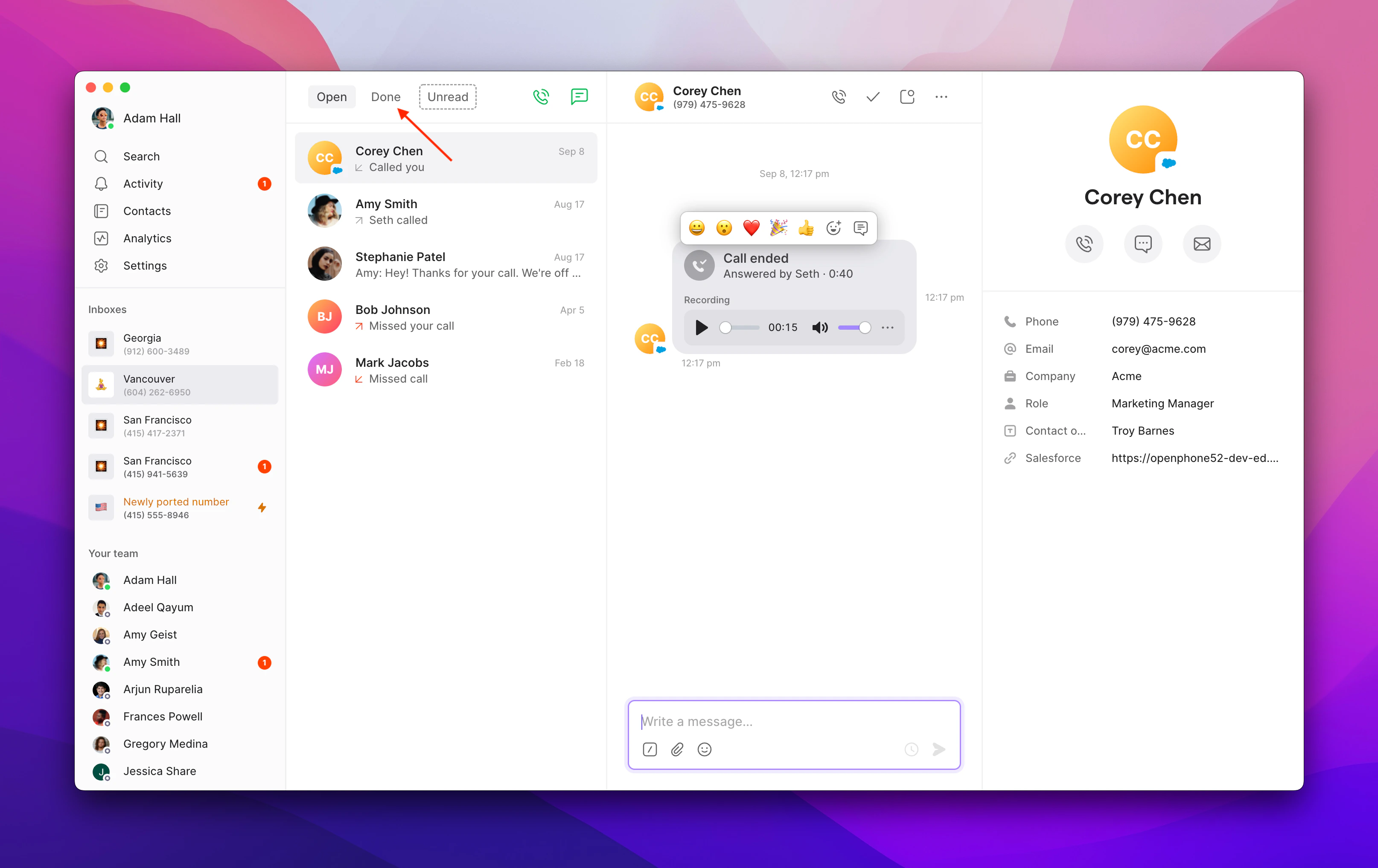
Messages are automatically saved when you mark conversations as "done":
1. Mark conversation as **Done**
2. Access saved messages using the **Done** filter
3. Messages stored indefinitely unless manually deleted
Save useful AI-generated responses as snippets for future reuse.
## Message management
### Saving and storing messages
Messages are automatically saved when you mark conversations as "done":
1. Mark conversation as **Done**
2. Access saved messages using the **Done** filter
3. Messages stored indefinitely unless manually deleted
 If subscription is cancelled, message data is only guaranteed for 14 days. Export data before cancellation if needed.
### Message limitations
**Cannot unsend messages**: Unlike peer-to-peer platforms, SMS messages sent through carrier networks cannot be recalled once delivered.
**Bulk image download**: Images must be downloaded individually - bulk download is not currently available.
**Character limit failures**: Messages exceeding 1,600 characters will fail with an error message.
If subscription is cancelled, message data is only guaranteed for 14 days. Export data before cancellation if needed.
### Message limitations
**Cannot unsend messages**: Unlike peer-to-peer platforms, SMS messages sent through carrier networks cannot be recalled once delivered.
**Bulk image download**: Images must be downloaded individually - bulk download is not currently available.
**Character limit failures**: Messages exceeding 1,600 characters will fail with an error message.
 ## Troubleshooting
Check message length (under 1,600 characters) and file size (under 5MB). Break long messages into multiple parts if needed.
Verify attachment size is under carrier limits (600KB recommended). Large images are automatically resized but may still fail delivery.
Ensure you're typing "/AI" exactly in the message field. Feature works on all platforms for all Quo users.
Use the "Done" filter to view conversations marked as complete. Messages remain stored unless manually deleted.
Messages with emojis or special characters are limited to 70 characters per segment instead of 160 for standard text.
## Troubleshooting
Check message length (under 1,600 characters) and file size (under 5MB). Break long messages into multiple parts if needed.
Verify attachment size is under carrier limits (600KB recommended). Large images are automatically resized but may still fail delivery.
Ensure you're typing "/AI" exactly in the message field. Feature works on all platforms for all Quo users.
Use the "Done" filter to view conversations marked as complete. Messages remain stored unless manually deleted.
Messages with emojis or special characters are limited to 70 characters per segment instead of 160 for standard text.