> ## Documentation Index
> Fetch the complete documentation index at: https://resource-center-zoho-crm-staging-feb20.mintlify.site/llms.txt
> Use this file to discover all available pages before exploring further.
# Join an existing workspace
> Learn how to join an existing Quo, formerly OpenPhone, workspace as a new team member.
## Overview
Got an invite to join your team's Quo workspace? Here's how to accept it and get set up.
### Accepting your invitation
When invited to join a workspace, you'll receive an invitation email that looks like this:
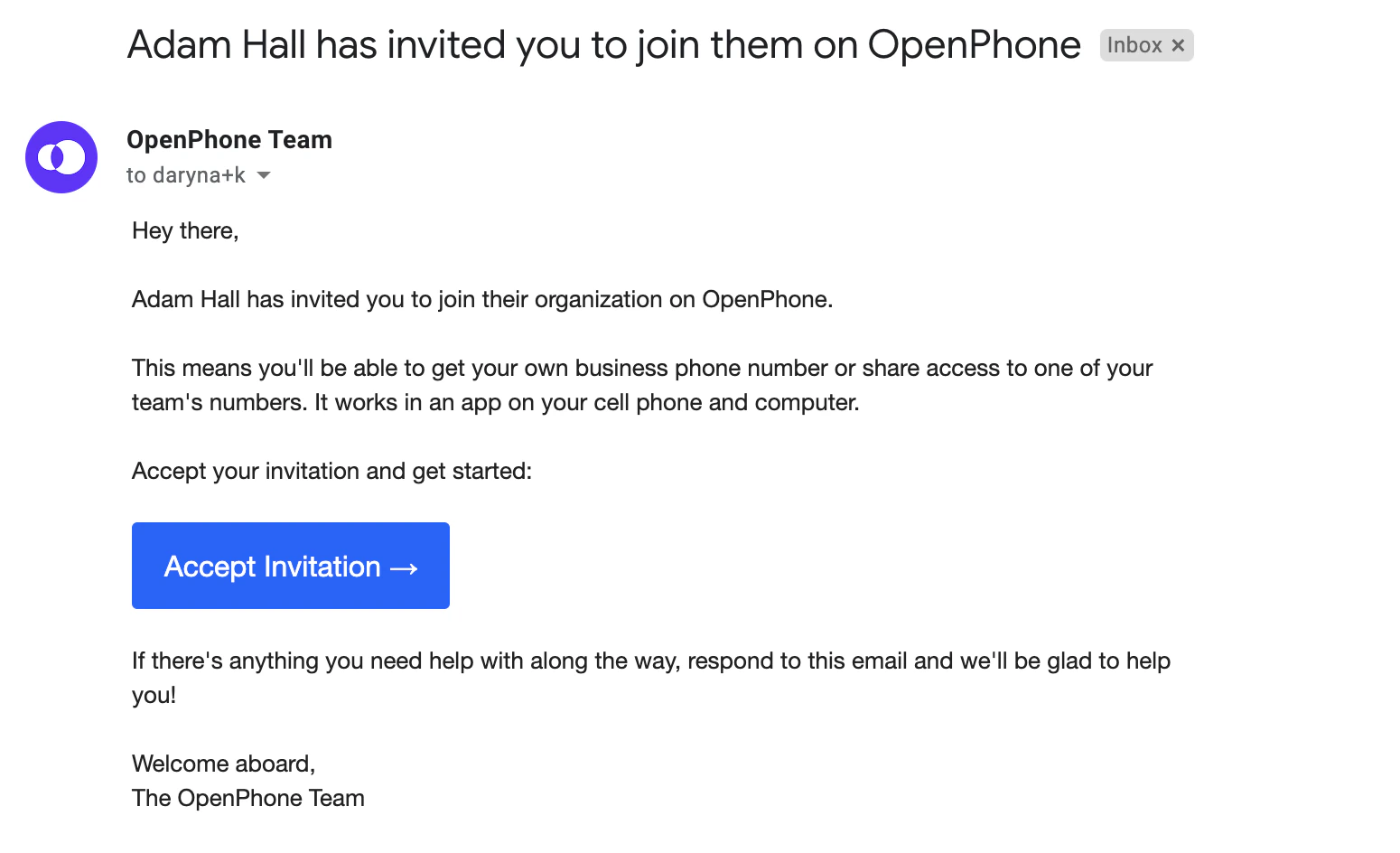 Click "Accept invitation" in the email to proceed.
### Sign up options
You have two options for signing up:
1. **Sign in with Google**: No passwords or codes needed - just sign in and you're all set
2. **Sign in with email**: You'll receive a one-time 6-digit code in your email inbox
Sign up with the exact same email address that received the invitation. For example, if the invitation came to [amy@zest.com](mailto:amy@zest.com), make sure to sign up as [amy@zest.com](mailto:amy@zest.com). Otherwise, you'll be placed in your own workspace.
### Completing your profile
Once you've accepted the invitation, you'll need to:
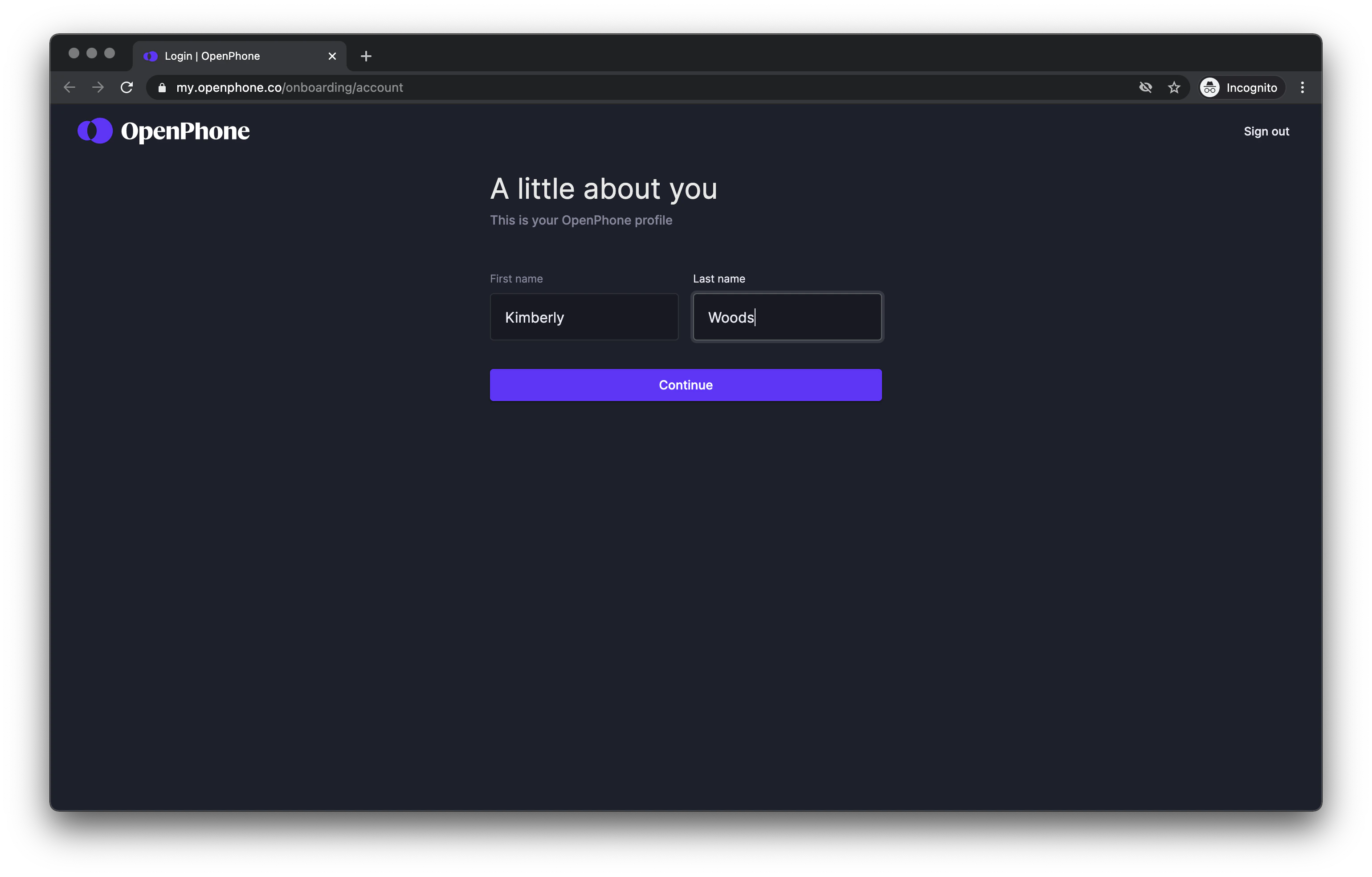
1. **Enter your name**
Click "Accept invitation" in the email to proceed.
### Sign up options
You have two options for signing up:
1. **Sign in with Google**: No passwords or codes needed - just sign in and you're all set
2. **Sign in with email**: You'll receive a one-time 6-digit code in your email inbox
Sign up with the exact same email address that received the invitation. For example, if the invitation came to [amy@zest.com](mailto:amy@zest.com), make sure to sign up as [amy@zest.com](mailto:amy@zest.com). Otherwise, you'll be placed in your own workspace.
### Completing your profile
Once you've accepted the invitation, you'll need to:
1. **Enter your name**
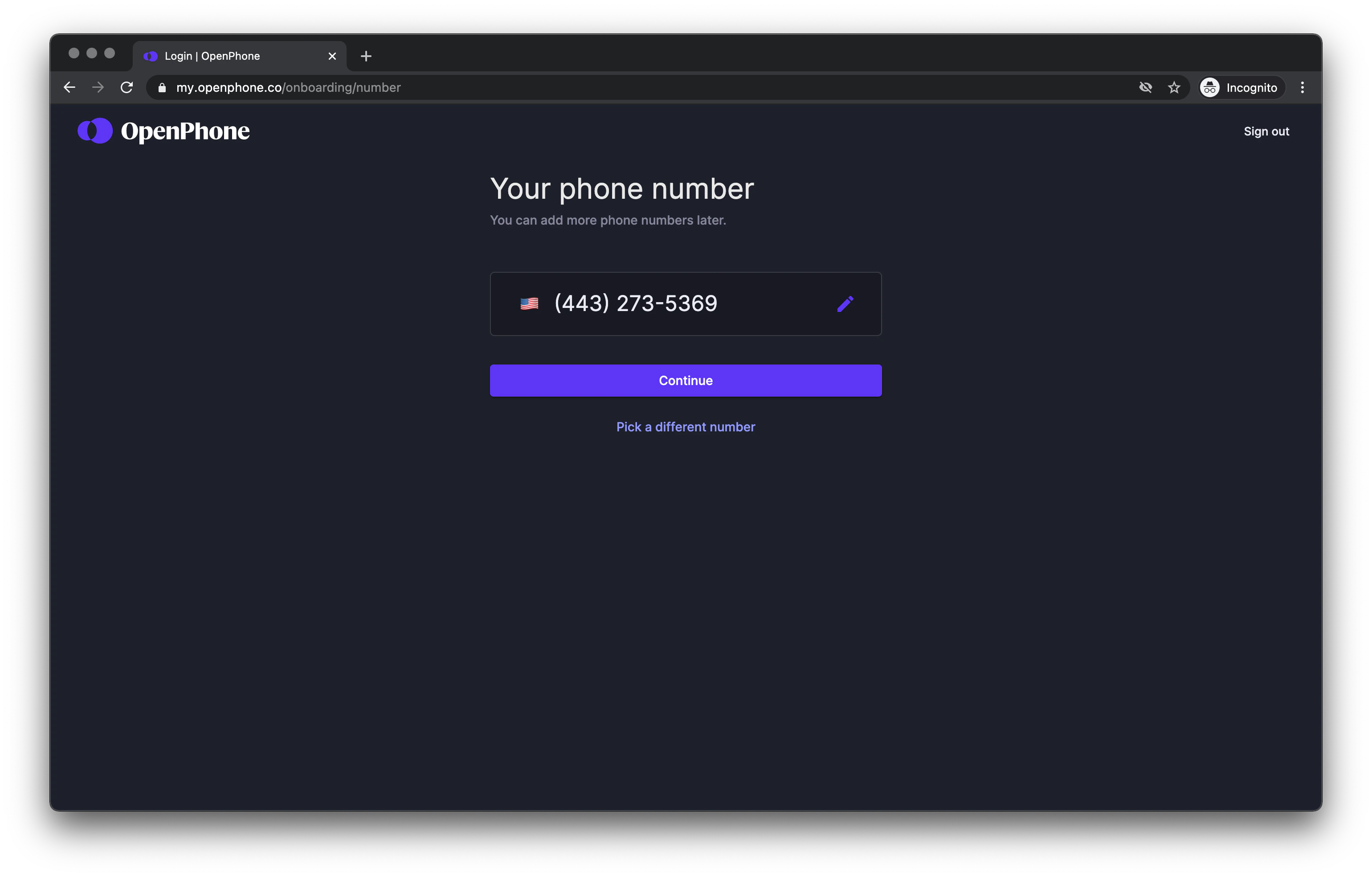
 2. **Pick your phone number** (if allowed by your workspace admin)
 That's it! You'll know you're all set when you enter your Quo inbox.
### Joining with your work email
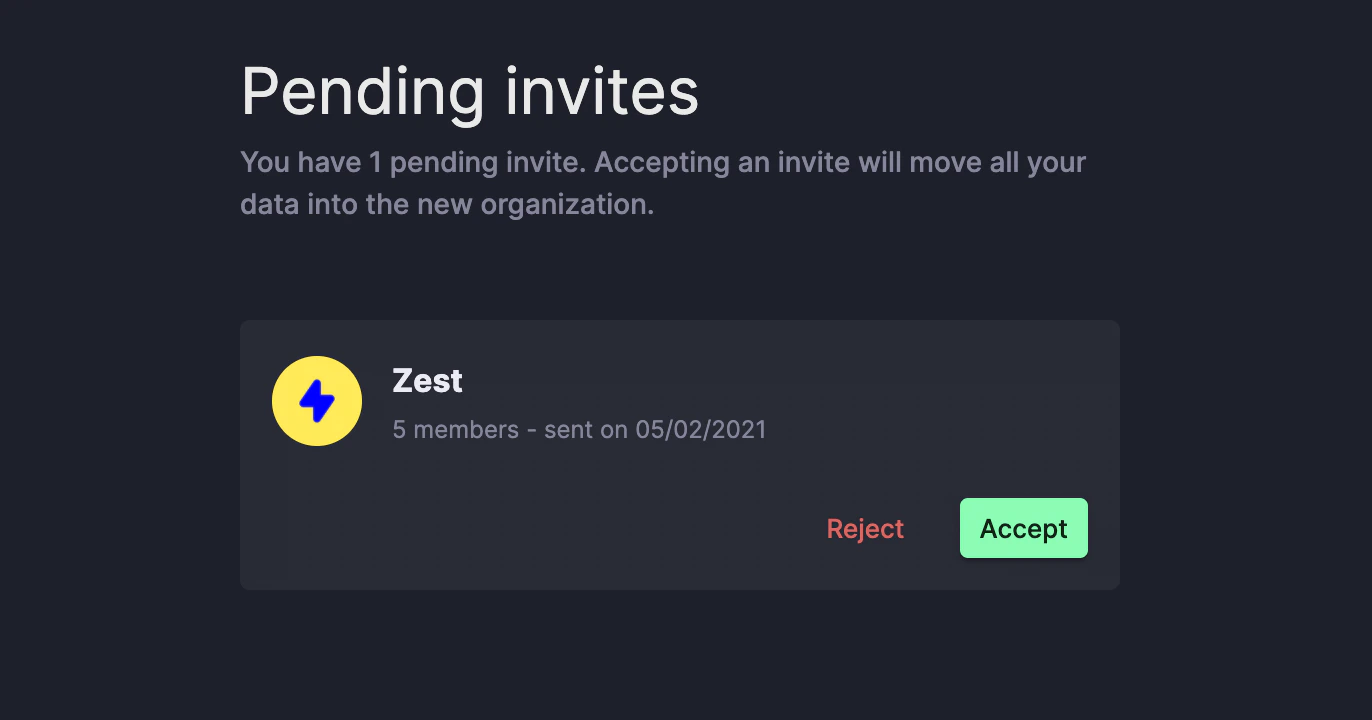
If your company uses Quo, you can also sign in directly at [my.quo.com/login](https://my.quo.com/login) with your work email. You'll receive a 6-digit code to confirm your email, then be given the option to join your company workspace:
That's it! You'll know you're all set when you enter your Quo inbox.
### Joining with your work email
If your company uses Quo, you can also sign in directly at [my.quo.com/login](https://my.quo.com/login) with your work email. You'll receive a 6-digit code to confirm your email, then be given the option to join your company workspace:
 Need assistance? [Submit a request](https://support.quo.com/help/submit-a-request) to our support team or [chat with us](https://support.quo.com/help/chat-with-us).