

Documentation Index
Fetch the complete documentation index at: https://resource-center-zoho-crm-staging-feb20.mintlify.app/llms.txt
Use this file to discover all available pages before exploring further.
Overview
Actions let Sona do more than talk. During a call, Sona can complete tasks you define—like texting a link or transferring the caller to a person or inbox. This keeps work moving in one conversation and reduces follow-ups. Think of actions as buttons you place inside Sona’s job instructions so it knows exactly when to act.How it works
Send SMS
Watch this short video to learn about SMS Actions and/or continue reading below.
What it does
- Sends a text to the caller’s number on the live call.
- Uses the same business number that received the call.
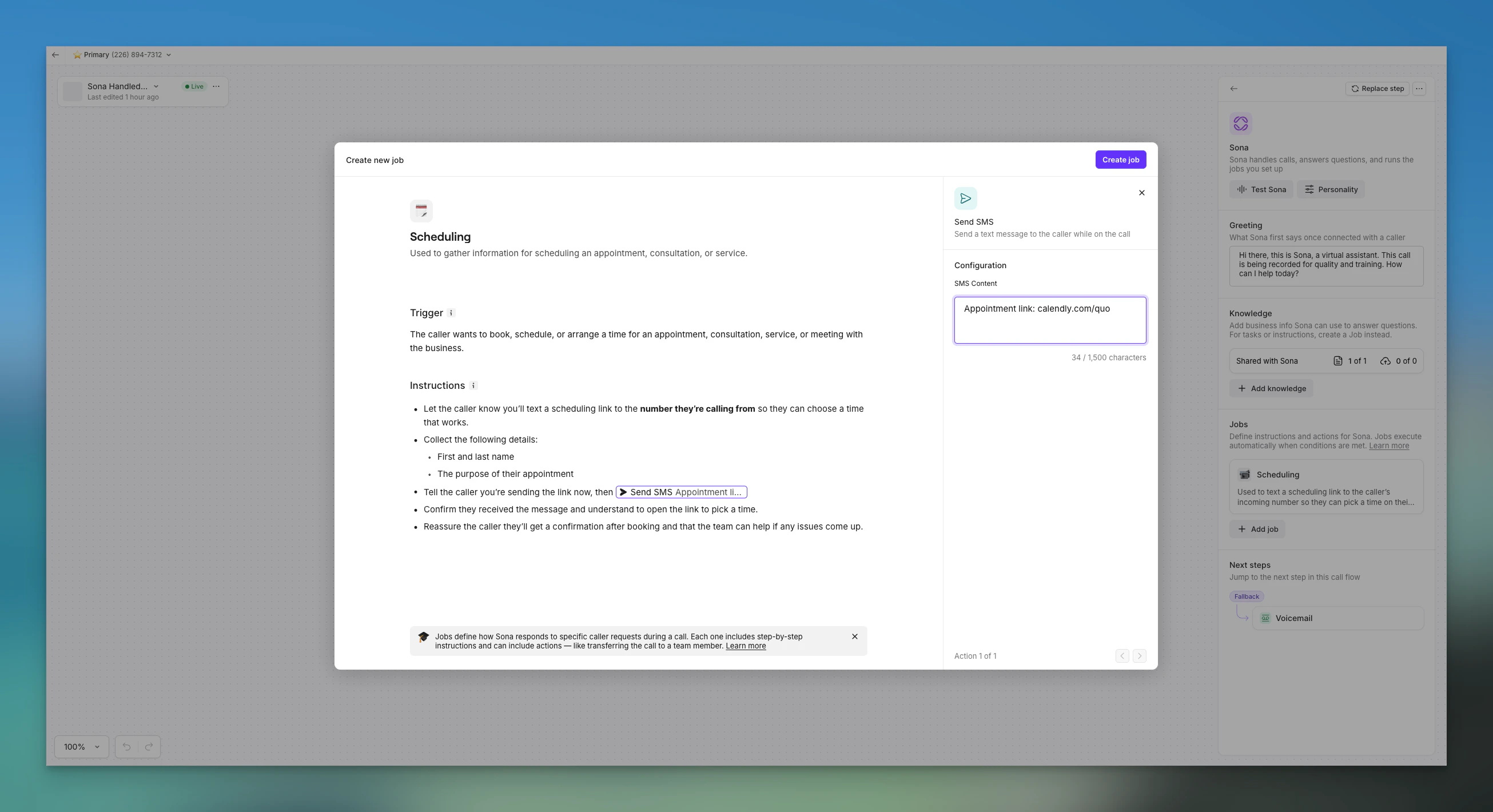
- Your numbers must be registered for business messaging (A2P 10DLC or toll-free).
- Learn more: carrier registration guide.
- Sona tells the caller it will text the link.
- Sona sends the SMS and confirms they received it.
- The text appears in your Inbox thread for that caller.
- Click Test Sona in the Sona step.
- Place a test call.
- After Send SMS runs, open your Inbox. You will see a text from your own number in that thread.
- In real customer calls, the sender shows as the Sona user, so you can tell Sona’s texts from teammate messages.
- Send SMS can only text the caller’s number from the call.
Transfer call
What it does- Sends a caller to a workspace member, a shared inbox, or an external number outside your Quo (formerly OpenPhone) workspace.
- When Sona uses the Transfer call action during a live conversation, here’s what happens step by step:
- Caller confirmation → Before transferring, Sona always confirms with the caller that they’d like to be transferred.
- Initiating the transfer → Once the caller agrees, Sona begins the transfer.
- To a workspace member → The selected member’s phone will ring. If they don’t answer, the call goes to their voicemail.
- To a shared inbox → All members of that inbox are rung simultaneously. If no one answers, the call goes to voicemail—regardless of that inbox’s existing call flow.
- To an external number → The call follows the routing and voicemail setup of that external number.
- Sona drops off → After initiating the transfer, Sona leaves the call entirely and cannot return. From that point, the conversation is in the hands of the recipient.
Create Jobber request
What it does- Creates a new Request in Jobber when Sona detects that a caller is asking about a new job or service.
- Sona generates the request title, service details, and next steps from the conversation. No manual data entry required.
- The request appears in Jobber in real time, before the call ends.
- Title: A short summary of the work request (e.g., “Kitchen sink pipe leak repair”). Sona infers this from what the caller described.
- Details: A list of labeled items Sona extracts from the conversation, such as:
- Service details (what needs to be done)
- Preferred timing (when the caller wants the work)
- Location notes (access instructions, unit number, etc.)
- Next steps (what should happen after the call, always included)
- Active Jobber integration connected in Settings > Integrations > Jobber
- Sona enabled on the phone number receiving calls
- A job with the Create request action attached to the relevant Sona step
- The caller describes what they need (e.g., “I need someone to look at my AC unit, it’s not cooling”).
- Sona gathers relevant details through natural conversation, such as timing preferences, location, and service specifics.
- When Sona has enough information, it creates the request in Jobber and confirms with the caller that their request has been submitted.
- Click Test Sona in your Sona step.
- Place a test call describing a service need.
- After the call, check Jobber for the new Request. Confirm the title, details, and next steps match what was discussed.
Example job instruction using Create request
Below is an example of how to include the Create Jobber Request action in a custom Sona job. You can adapt this to your business.- The action is placed at the point in the conversation where Sona has gathered enough context to generate a useful request.
- Sona determines the title and details from the conversation. You don’t need to specify field mappings.
- The instruction explicitly tells Sona when not to create a request, which prevents false positives.
Build actions into a job
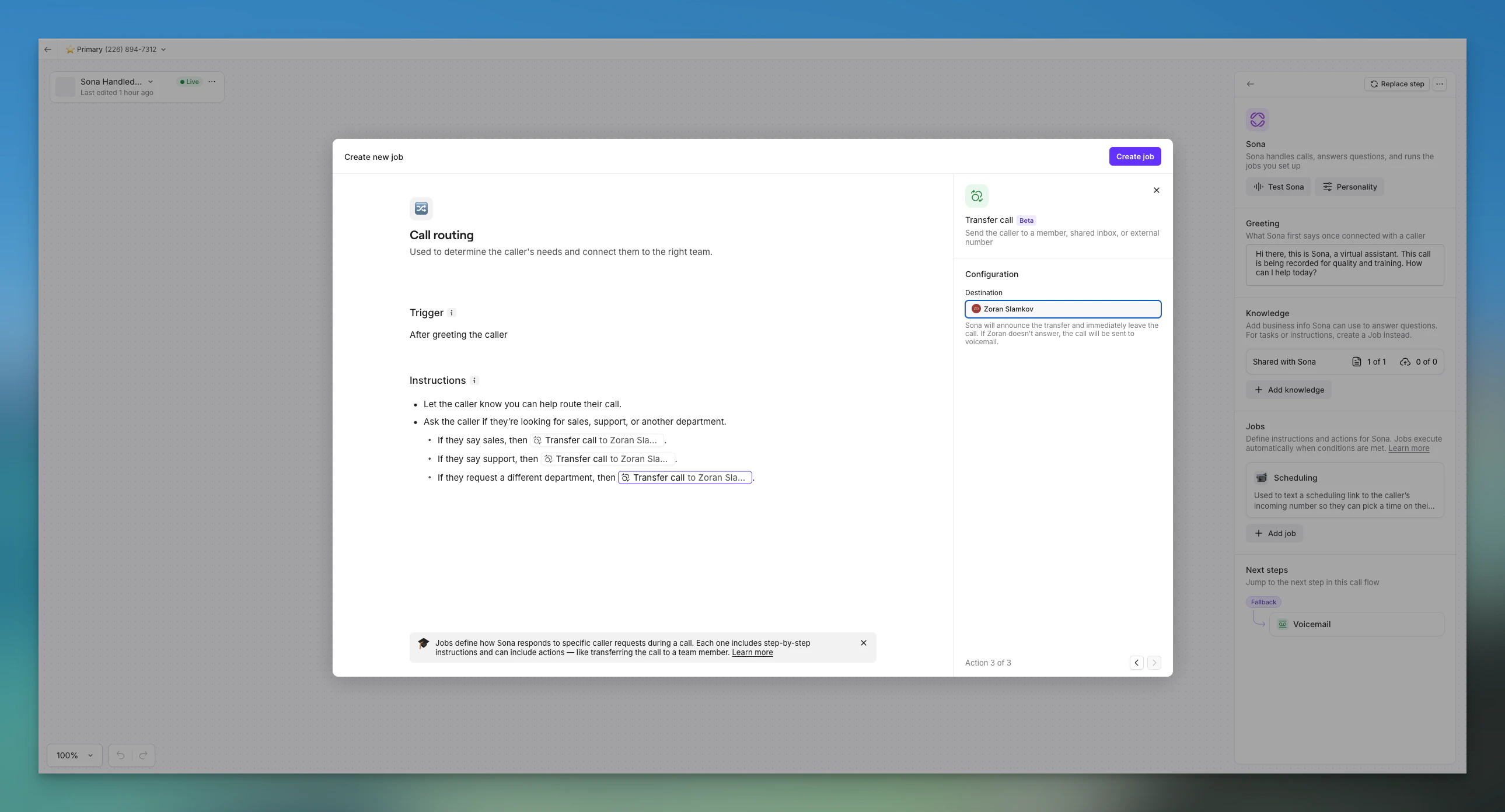
- Go to Sona → Jobs → Create new job.
- Write your instructions in plain language.
- Type / to insert an action and choose Send SMS or Transfer call.
- Configure the action:
- Send SMS → enter the SMS content (for example, your booking link).
- Transfer call → choose a member, a shared inbox, or an external number.
- Click Save. Place the job in your call flow.
- Click Test Sona to try it end-to-end.
- “Let the caller know you’ll text the scheduling link now, then /Send SMS: https://example.com/book. Confirm they received it.”
Key benefits at a glance
- Book faster by texting a scheduling link mid-call.
- Reduce back-and-forth with one clear message the caller can open later.
- Keep a record in your Inbox for every SMS Sona sends.
- Route complex calls with quick, confirmed transfers.
Frequently asked questions
Who can use Send SMS?
Who can use Send SMS?
Any workspace with phone numbers registered for business messaging (A2P 10DLC or toll-free). Unregistered numbers cannot send SMS via Sona. See the carrier registration guide.
Can Send SMS text a different recipient?
Can Send SMS text a different recipient?
No. Send SMS only sends to the phone number of the caller on the live call.
Which number does the text come from?
Which number does the text come from?
The text is sent from the same business number that received the call. You cannot set a different sending number.
Where do I see the message Sona sent?
Where do I see the message Sona sent?
In your Inbox conversation with that caller. In tests, you will see a text from your own number. In real calls, messages show as coming from the Sona user.
Can I use Send SMS and then transfer the caller?
Can I use Send SMS and then transfer the caller?
Yes. Add Send SMS first to share a link, then transfer the caller. Once transferred, Sona leaves the call and cannot return.
Does this work on toll-free numbers?
Does this work on toll-free numbers?
Yes, if the toll-free number is registered for business messaging. Registration is required before Send SMS will work.