

Overview
The Pipedrive integration brings your CRM and phone system together so your team always has the most up-to-date customer context. Once connected, Quo will automatically sync your Pipedrive contacts into Quo and log all calls, texts, voicemails, recordings, and AI-powered call summaries back to the correct Pipedrive contacts. This allows sales, success, and support teams to work directly from Pipedrive with complete communication history without manual updates, or switching tools.To enable the Pipedrive integration you’ll need to be a workspace Owner or Admin, and be on a Quo Business or Scale plan
How the integration works
Contact syncing
Quo automatically imports and displays contact information from Pipedrive when a call or text matches an existing Pipedrive Person’s phone number. The integration focuses on displaying Pipedrive contact information during active conversations rather than syncing entire contact databases.
- First name
- Last name
- Phone
- Email address
- Organization
Limitations of contact syncing with Pipedrive
- One-way sync only: Contact details flow from Pipedrive to Quo, not bidirectionally at this time.
- Contact matching is phone-number based: Quo displays Pipedrive contact details only when the incoming/outgoing phone number matches a Person’s number in Pipedrive.
- Editing in Quo does not update Pipedrive: If you need to update names, numbers, or emails for a Person, make those changes directly in Pipedrive.
- Contacts created or edited in Quo do not sync back to Pipedrive.
Quo activity syncing
Quo can automatically log communication activity to the correct Pipedrive contact giving your team a unified timeline of every customer interaction. These include all of the following:- Incoming calls (incl. those handled by Sona)
- Outgoing calls
- Call recordings
- Call summaries and next steps
- Voicemail
- SMS messages
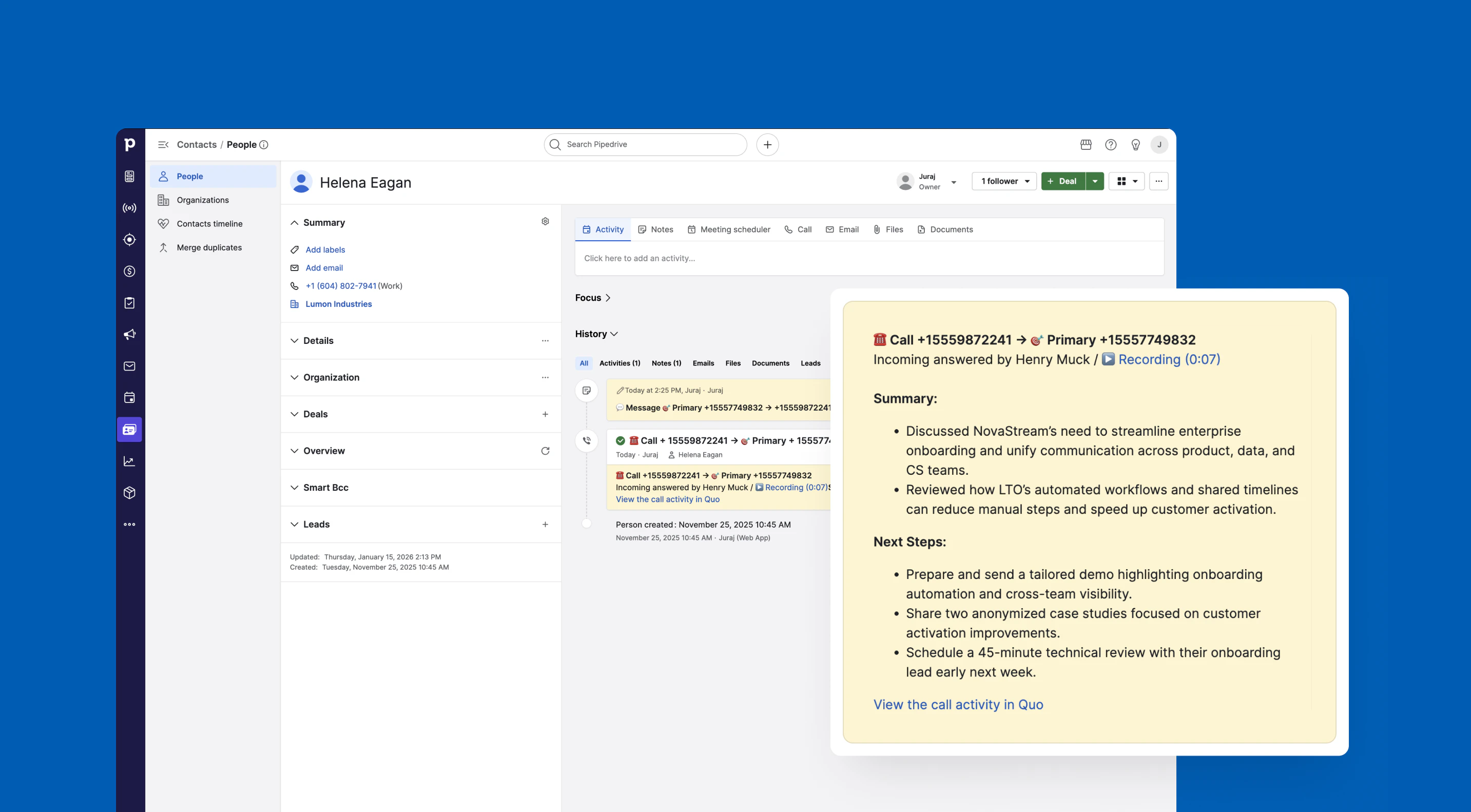
Number-level control
You can choose which Quo phone numbers sync activity to Pipedrive, giving teams flexibility in managing what data flows to the CRM.Who can access and set up the integration?
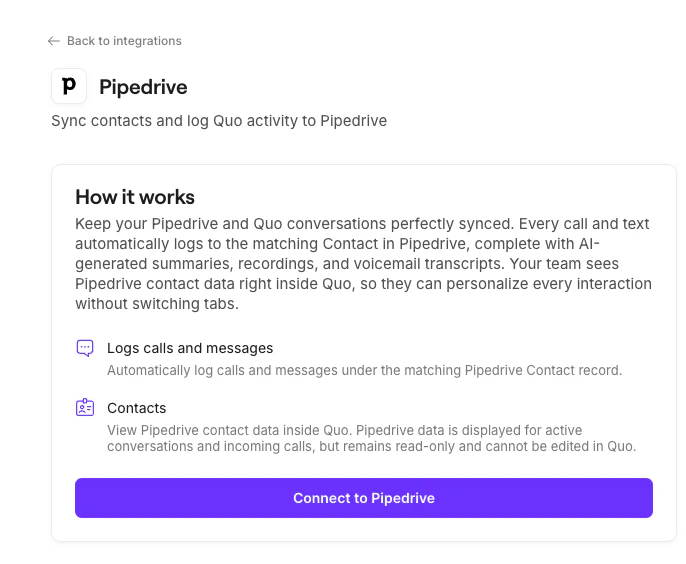
All customers on the Quo Scale and Business plans have access to the integration. Only an Quo workspace Owner or Admin can set up the integration. From Pipedrive, you can access this integration with any Pipedrive plan.How to set up the Pipedrive integration
Quo Workspace Owners/Admins:- Navigate to the Quo web or desktop app
- Go to Workspace Settings → Integrations
- Select Pipedrive and authenticate
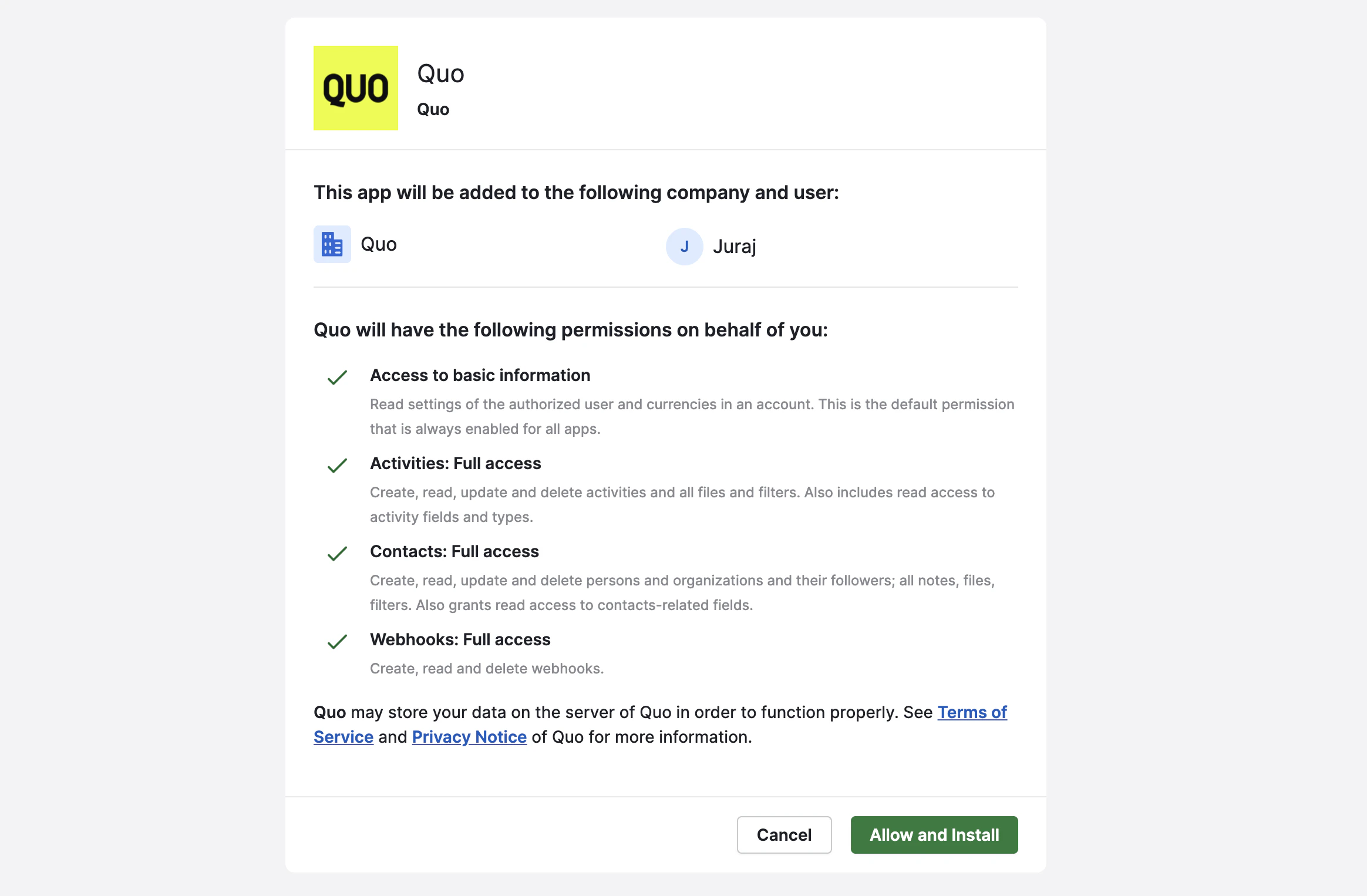
- Choose the phone numbers you want to sync to Pipedrive
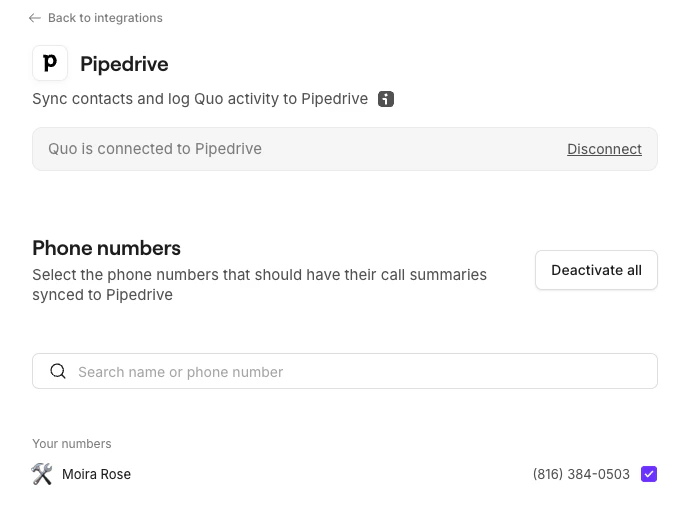
- Save configuration
How to disconnect the Pipedrive integration
If you wish to uninstall your Pipedrive integration, there are two ways to do so:From Quo
- In your Quo workspace, navigate to Settings > Integration > Pipedrive
- Click Disconnect
From Pipedrive
- In Pipedrive, navigate to your Settings > Tools and apps > Marketplace apps
- Find the Quo, then click the three-dot menu (…) icon
- Select Uninstall
While the integration is disconnected, Quo will not send any activity to Pipedrive. Activities generated during downtime cannot be synced retroactively, though they remain visible in Quo.
FAQs
How does data flow between Quo and Pipedrive?
How does data flow between Quo and Pipedrive?
This integration sends and receives data differently, depending on the information that’s being shared.
- Pipedrive → Quo: Contact information is read from Pipedrive and displayed in Quo during active conversations
- Quo → Pipedrive: Communication activity (calls, texts, voicemails, recordings, and AI summaries) is sent into Pipedrive
Changes made in Quo won’t update contact records in Pipedrive, and contacts created in Quo aren’t pushed back to Pipedrive.
Why don’t all my Pipedrive contacts appear in Quo after I connect the integration?
Why don’t all my Pipedrive contacts appear in Quo after I connect the integration?
Quo does not sync your entire Pipedrive contact database.Contact information is displayed only during active conversations, when:
- A call or text is sent or received
- The phone number matches an existing Person in Pipedrive
How are calls and texts logged in Pipedrive?
How are calls and texts logged in Pipedrive?
Quo logs activity using Pipedrive’s native objects:
- Phone calls are logged as Activities
- SMS messages are logged as Notes
How are calls handled by Sona logged in Pipedrive?
How are calls handled by Sona logged in Pipedrive?
Calls handled by Sona are logged in Pipedrive the same way as regular Quo calls.Sona-handled call activities include:
- An indicator that the call was handled by Sona
- The call summary and next steps
- A recording link (if available)
Do I need the Quo desktop app to make calls from Pipedrive?
Do I need the Quo desktop app to make calls from Pipedrive?
Yes. To use click-to-call from Pipedrive, the Quo desktop app must be installed and running.When you click a phone number in Pipedrive:
- The Quo desktop app opens
- The number is pre-filled
- The call is placed from your Quo number
What happens to call details after they sync to Pipedrive?
What happens to call details after they sync to Pipedrive?
Once a call is synced to Pipedrive:
- Recording links do not expire and usually download the MP3 directly
- All relevant contacts involved in the call are linked to the activity
- Add or remove associated contacts
- Attach the call to a deal
- Adjust ownership or context as needed
What happens if I disconnect the integration or my Pipedrive subscription ends?
What happens if I disconnect the integration or my Pipedrive subscription ends?
Any activities that synced before disconnection remain in Pipedrive.Keep in mind:
- New calls or messages won’t sync while disconnected
- Missed activity can’t be synced retroactively
- Reconnecting the integration resumes syncing from that point forward